




Analysis
By Daniel Fleuren
If you have ever asked an AI coding tool to "refactor the auth module" and watched it confidently rewrite half your project in a direction you never wanted, you already understand the problem Plan Mode is trying to fix.
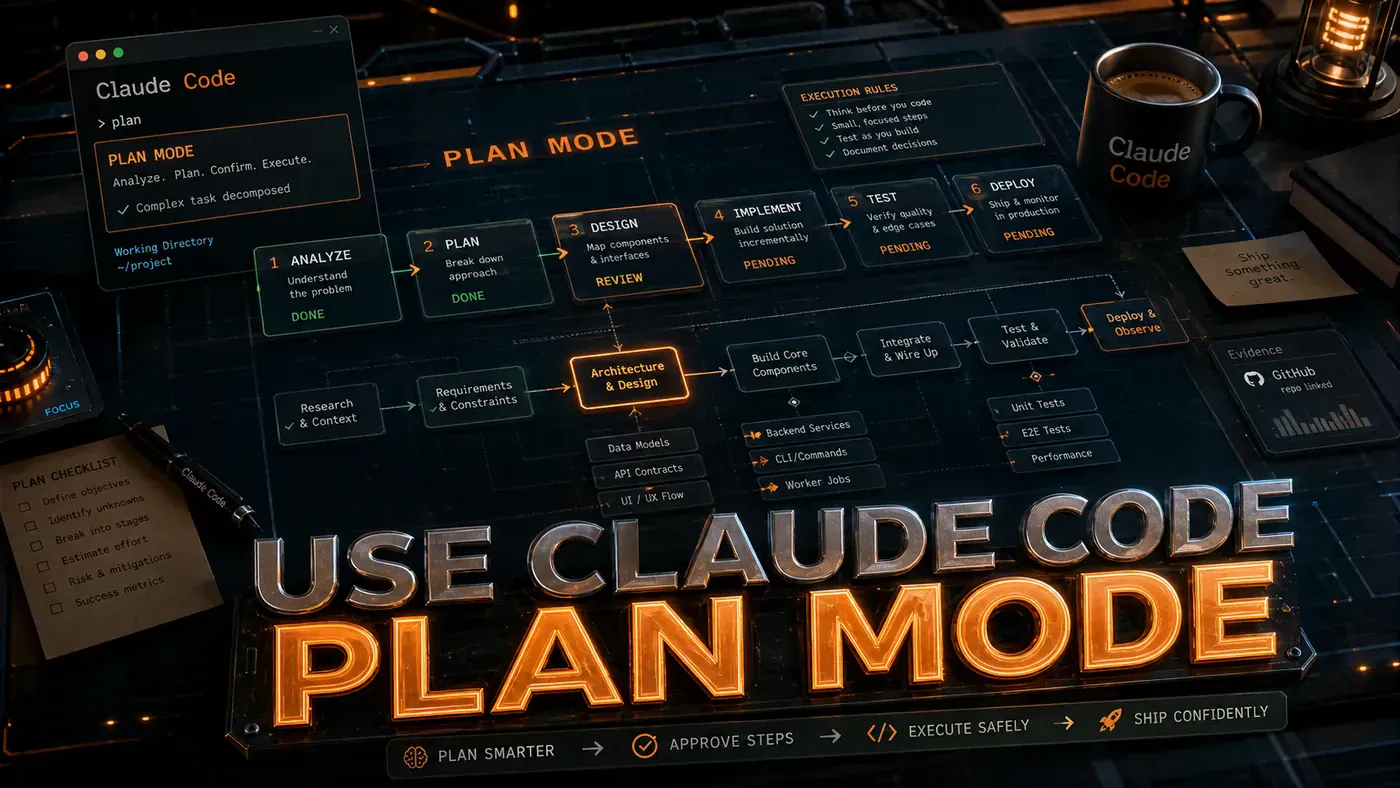
The idea is simple. Before Claude Code touches a single file, it stops and reads. It explores the relevant code, figures out what depends on what, and writes up a plan in plain terms. Nothing gets changed until you say go. Anthropic confirms this is a genuine read-only mode: Claude analyses the codebase and drafts a plan, and makes no edits until you approve it (Claude Code Docs, Permission modes (opens in a new tab)).
For a business team, the value is less about the AI and more about control. A plan you can read is a plan you can argue with. You catch the wrong assumption before it costs you an afternoon of cleanup, not after.
A fair warning before we go further. Some of the slick, menu-driven mechanics described in the walkthrough below are not how the shipping product actually behaves. The real way to enter Plan Mode is to press Shift+Tab twice, and the practical workflow is more conversational than the polished menus suggest. We have flagged those gaps as we go so you know what is real and what is aspirational.
Analysis
Prerequisites
- A recent build of Claude Code. The article's original "Claude Code >= 0.35" figure is unconfirmed and looks outdated, since Claude Code is now on the 2.x line; the
/plancommand specifically needs v2.1.0 or later (Claude Code Docs, Commands (opens in a new tab)). - A codebase to work with
- A working understanding of your project's architecture
Step-by-Step Framework
Step 1: Invoke Plan Mode
The documented way to enter Plan Mode is to press Shift+Tab twice, which cycles you from Normal to Auto-accept to Plan Mode (Claude Code Docs, Permission modes (opens in a new tab)). Newer versions also add a /plan command (v2.1.0 and up), and you can start a session in Plan Mode with the --permission-mode plan flag.
The original version of this guide listed three other triggers. They are worth showing, but the fact-check could not confirm any of them, so read them as illustrative rather than commands that actually work:
# Method 1: Prefix your request
claude "Plan: Refactor the auth module to use JWT tokens with refresh token rotation"

# Method 2: Explicit command
claude plan "Add pagination to all API list endpoints"

# Method 3: In interactive mode
> /plan "Implement rate limiting middleware"
To be clear: no "Plan:" prefix and no claude plan subcommand appear in the documentation, and the real /plan command toggles planning for your next prompt rather than taking a quoted task as shown above. Stick with Shift+Tab twice and you will not go wrong.
Step 2: Understand the Plan Output
The original guide showed Claude Code producing a tidy, templated plan like the one below. Reportedly this is what the output looks like, but the fact-check found no source for this exact format. In practice the real Plan Mode writes a free-form plan and asks you to approve it through its ExitPlanMode prompt, not a fixed "Execution Plan" template with token and time estimates. Here is the original illustration:
=== Execution Plan ===

Goal: Refactor auth module to use JWT with refresh token rotation

Step 1: Analyse current auth implementation
 Files to read: src/auth/*, src/middleware/auth.ts, src/config/auth.ts
 Dependencies: Identify current session-based auth flow
 Output: Understanding of current implementation

Step 2: Install JWT dependencies
 Command: npm install jsonwebtoken @types/jsonwebtoken
 Output: package.json updated

Step 3: Create JWT service module
 Files to create: src/services/jwt.ts
 Implementation:
 - generateAccessToken(userId, roles)
 - generateRefreshToken(userId)
 - verifyAccessToken(token)
 - verifyRefreshToken(token)
 - rotateRefreshToken(oldToken)
 Tests: src/services/jwt.test.ts

Step 4: Update auth middleware
 Files to modify: src/middleware/auth.ts
 Changes:
 - Replace session check with JWT verification
 - Add token refresh on expiry
 - Handle refresh token rotation

Step 5: Update login/logout endpoints
 Files to modify: src/routes/auth.ts
 Changes:
 - Return access + refresh tokens on login
 - Clear tokens on logout
 - Add refresh endpoint

Step 6: Add rate limiting
 Files to create: src/middleware/rate-limit.ts
 Implementation: Token bucket per user

Step 7: Run tests
 Command: npm test
 Expected: All tests pass

=== Estimated Tokens: 45,000 | Estimated Time: 8 minutes ===

Execute this plan? [Y/n/edit/skip]
Even with the format caveat, the shape of a good plan is the lesson here. You want named steps, the files each step touches, the dependencies between them, and the tests that prove it worked. That is what you are checking for before you approve.
Step 3: Review and Edit the Plan
Before you green-light anything, read it and push back where it looks wrong. The original guide showed a numbered step editor, reproduced below. Worth a caveat: this interactive editor (the > edit prompt and "Which step? 3" flow) is not a documented feature. In the real product you revise a plan by talking to Claude, not by stepping through a menu.
> edit

Which step? 3

Current: Create JWT service module
Modify to: Create JWT service module with RSA256 signing
Add note: Use private key from environment variable, public key for verification

Updated Step 3:
 Files to create: src/services/jwt.ts
 Implementation:
 - Use RS256 algorithm (asymmetric)
 - Private key from JWT_PRIVATE_KEY env var
 - Public key embedded or from JWT_PUBLIC_KEY env var
 - generateAccessToken(userId, roles), signs with private key
 - verifyAccessToken(token), verifies with public key
 - ...
The principle holds regardless of how you do it. If a step bakes in a decision you disagree with, say so before execution rather than after.
Step 4: Execute with Monitoring
Once you approve, the run plays out step by step. The detailed progress log below is the original article's illustration of a clean run:
> Y

[Step 1/7] Analysing current auth implementation...
 Reading src/auth/login.ts...
 Reading src/auth/session.ts...
 Reading src/middleware/auth.ts...
 Found: Express session middleware, bcrypt password hashing, no JWT
 Duration: 12s ✓

[Step 2/7] Installing dependencies...
 $ npm install jsonwebtoken @types/jsonwebtoken
 Added 2 packages in 3.2s
 Duration: 4s ✓

[Step 3/7] Creating JWT service module...
 Writing src/services/jwt.ts...
 Writing src/services/jwt.test.ts...
 Duration: 18s ✓

[Step 4/7] Updating auth middleware...
 Modifying src/middleware/auth.ts...
 ⚠ Warning: Breaking change, session middleware removed
 Duration: 15s ✓

[Step 5/7] Updating auth routes...
 Modifying src/routes/auth.ts...
 Duration: 22s ✓

[Step 6/7] Creating rate limiter...
 Writing src/middleware/rate-limit.ts...
 Duration: 10s ✓

[Step 7/7] Running tests...
 $ npm test
 ✓ jwt service (8 tests)
 ✓ auth middleware (5 tests)
 ✓ auth routes (6 tests)
 ✓ rate limiter (4 tests)
 23 passing, 0 failing
 Duration: 8s ✓

=== Plan Complete: 7/7 steps successful ===
Total tokens: 42,300 | Total time: 1m 29s
The watch-it-run part is the point. You can see which file is being changed and stop things early if a step heads somewhere you did not intend.
Step 5: Handle Plan Failures
Steps fail. The original guide showed a recovery menu when that happens, reproduced below. A caveat here too: this [retry/skip/replan/manual/abort] menu and the "automatic replanning" it describes are not documented features. The fact-check found no source for them, so treat the example as a model for how you would want failure handled, not a button you will actually see.
[Step 4/7] Updating auth middleware...
 Error: Cannot find module '../services/jwt'
 Duration: 3s ✗

Options:
 [retry], Retry the step
 [skip], Skip and continue
 [replan], Regenerate remaining steps based on current state
 [manual], Switch to interactive mode for this step
 [abort], Roll back all changes

> replan

Regenerating steps 4-7 based on current codebase state...

[Step 4/7] Creating JWT service module (was step 3, needs completion)...
 Found: src/services/jwt.ts is empty template
 Completing implementation...
 Duration: 15s ✓

[Step 5/7] Updating auth middleware...
 Now can import from '../services/jwt'...
 Duration: 12s ✓
 ...
In real use, when something breaks mid-run you tell Claude what happened and ask it to rework the rest of the plan. The conversation is the recovery mechanism.
Step 6: Advanced, Conditional Plans
The original guide proposed authoring branching plans with IF / ELSE IF / ELSE / COMMON keywords inside the prompt, shown below. This one needs the firmest caveat: there is no conditional-plan syntax in Claude Code. The fact-check confirms this is not a real feature, so the example is purely conceptual.
claude plan "Migrate from REST to GraphQL
 IF project uses Apollo Server:
 Step A: Update Apollo schema
 ELSE IF project uses Express:
 Step A: Install Apollo Server
 Step B: Create schema from existing routes
 ELSE:
 Step A: Evaluate GraphQL libraries

 COMMON:
 Step N: Write resolver tests
 Step N+1: Deploy to staging"
You can get a similar effect the plain way: describe the decision points in normal language and let Claude inspect the project to work out which path applies.
Step 7: Plan Templates
The original guide suggested saving reusable plan patterns as YAML and applying them with a --template flag, shown below. Worth knowing: plan templates are an open feature request on the Claude Code GitHub repo, not something that has shipped (anthropics/claude-code Issue #14866 (opens in a new tab)). There is no .claude/plan-templates directory or --template flag today, so this is a preview of a possible future, not a current capability.
# .claude/plan-templates/feature-add.yaml
template: feature-add
steps:
 - analyse: "Read relevant existing code"
 - design: "Plan the implementation with current patterns"
 - implement: "Write code following team conventions"
 - test: "Write unit and integration tests"
 - verify: "Run full test suite"
 - document: "Update README and inline docs"
claude plan --template feature-add "Add webhook signature verification"Until templates land, you can keep your own reusable prompts in a notes file and paste them in. Less elegant, same outcome.
Do/Don't
| Do | Don't |
|---|---|
| Read the full plan before executing | Accept plans blindly without reading |
| Push back on steps that look wrong or thin | Run a plan with steps you do not understand |
| Ask for a rethink when the context shifts | Force a run past a major failure |
| Keep your own library of good prompts | Rebuild the same plan from scratch each time |
| Watch your token usage | Ignore the cost and get a surprise bill |
Plan Mode vs Direct Mode
| Scenario | Use Plan Mode | Use Direct Mode |
|---|---|---|
| New feature | ✓ | |
| Refactoring | ✓ | |
| Bug fix (simple) | ✓ | |
| One-line change | ✓ | |
| Architecture change | ✓ | |
| Code review | ✓ | |
| "Explain this code" | ✓ | |
| "Write a test" | ✓ (simple) / ✓ (complex suite) |
Conclusion
Strip away the disputed mechanics and the core idea still earns its keep. Plan Mode makes Claude Code show its working before it changes anything, and that gap between intention and execution is where you catch mistakes cheaply. Anthropic documents it as a real read-only mode, and on Sonnet 4.6 it can lean on the 1M-token context window to read a large codebase in one pass (Claude, 1M context GA for Opus 4.6 and Sonnet 4.6 (opens in a new tab)).
So the practical advice is narrow but firm: for anything that touches several files or has the potential to go sideways, press Shift+Tab twice and read the plan first. The minute or two you spend reviewing usually saves you the half-hour you would have spent undoing a confident mistake.