





Analysis
Analysis
Most "agent frameworks" are a chat window bolted onto an API. Hermes Agent (opens in a new tab), from the team at Nous Research, is pitching something stranger: an agent that remembers you between sessions and writes new tools for itself when it hits a task it can't already do.
The remembering part runs on Honcho (opens in a new tab), an open-source memory layer that keeps your facts and preferences in a database the agent can search later. The self-improving part is the headline feature, and it's the one that should make a cautious business reader sit up. An agent that can add its own tools is useful right up until it isn't, which is why the sensible default is to keep a human in the approval loop.
The catch for anyone hoping to follow along step by step: the install instructions circulating in guides like this one don't quite match how Nous actually ships the software. The version numbers, the star count, the pip commands, even some of the CLI commands have drifted from reality. We've flagged those below and kept the steps as a teaching example rather than a copy-paste recipe. The shape of the workflow is right. The exact strings are not gospel.
If you want the real thing, the official documentation (opens in a new tab) and the GitHub repository (opens in a new tab) are the sources to trust over any walkthrough.
Prerequisites
- Python 3.11 or newer (check with
python --version) uvinstalled (curl -LsSf https://astral.sh/uv/install.sh | sh)- Git
- An OpenAI-compatible API key (OpenAI, Anthropic, or local via Ollama)
- 4GB RAM minimum (8GB recommended)
Python 3.11 is genuinely the floor here, per the repository (opens in a new tab). The uv recommendation is sound advice for Python tooling in general, though note that Nous's documented install path uses its own installer rather than a manual pip setup, so you may not need uv at all in practice.
Step-by-Step Framework
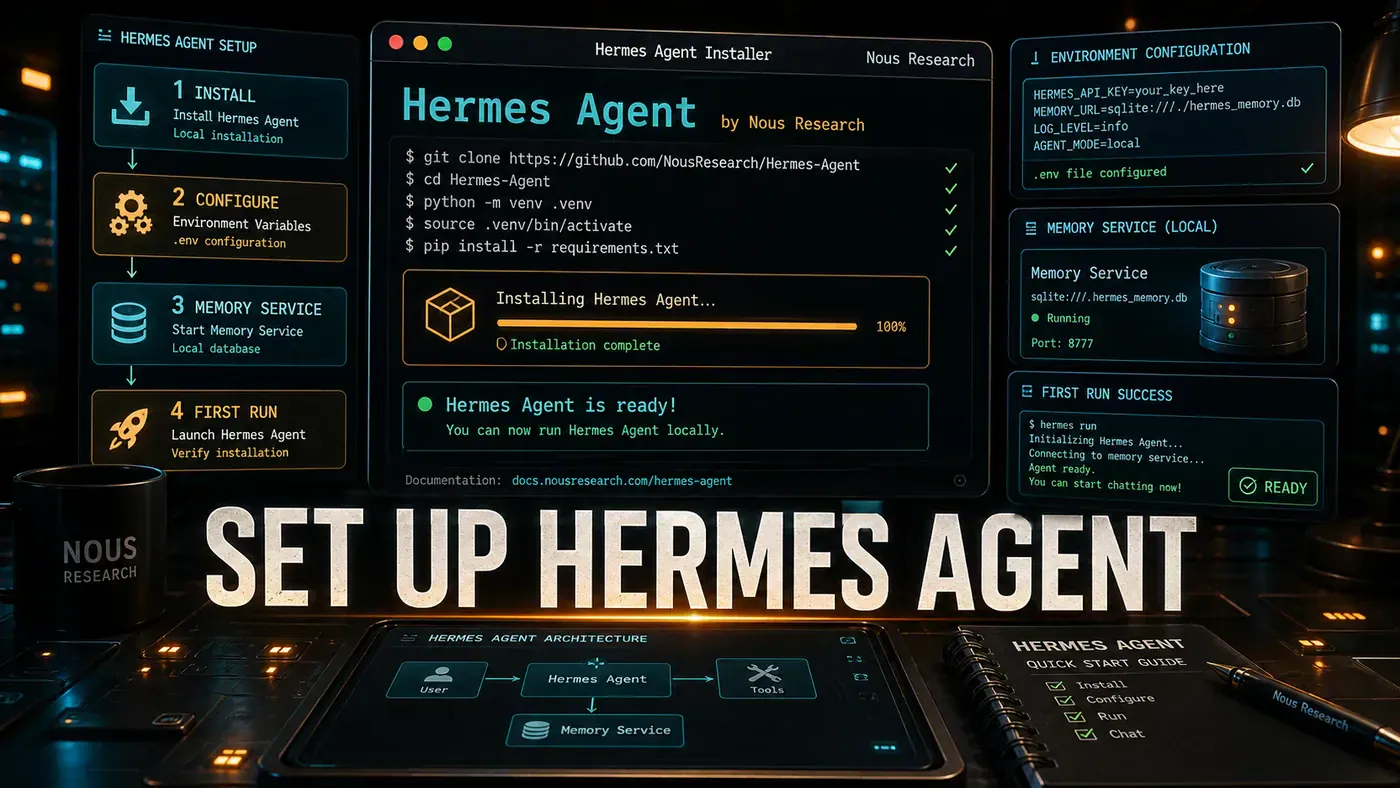
Step 1: Clone and Set Up the Repository
# Clone the repository
git clone https://github.com/NousResearch/hermes-agent.git
cd hermes-agent

# Create virtual environment with uv (much faster than venv)
uv venv .venv --python 3.11
source .venv/bin/activate # Linux/macOS
# .venv\Scripts\activate # Windows

# Install dependencies
uv pip install -e ".[all]"
The [all] extra installs every tool integration. For a lighter install, use ".[core]" and add specific extras like ".[web,git,code]" as needed.
A note on this step: the official docs do not list a git-clone-plus-editable-pip-install as a supported install method. Nous documents a curl install script, a PowerShell one-liner, and a desktop installer instead. The block above is a reasonable illustration of how a Python project like this would set up, but if you run it verbatim it may not give you a working agent. Pull the current commands from the Hermes Agent docs (opens in a new tab) before you commit to anything.
Step 2: Configure Environment Variables
Create a .env file in the project root:
cat > .env << 'EOF'
# Required: Your LLM provider
LLM_PROVIDER=anthropic
ANTHROPIC_API_KEY=sk-ant-your-key-here

# Alternative: OpenAI
# LLM_PROVIDER=openai
# OPENAI_API_KEY=sk-your-key-here

# Alternative: Local via Ollama
# LLM_PROVIDER=ollama
# OLLAMA_BASE_URL=http://localhost:11434
# OLLAMA_MODEL=llama3.3:70b

# Honcho Memory (required for persistence)
HONCHO_API_KEY=honcho-your-key-here
HONCHO_APP_ID=your-app-id

# Optional: Brave Search for web tools
BRAVE_API_KEY=your-brave-key

# Optional: GitHub for repo operations
GITHUB_TOKEN=ghp_your-token

# Logging
LOG_LEVEL=INFO
EOF
The provider switching here matches how these frameworks usually work: point it at an OpenAI-compatible endpoint and you're off. Honcho is the part worth keeping, since that's the real memory backend (opens in a new tab) Hermes uses.
Step 3: Verify the Installation
# Check all components are installed
hermes doctor
Expected output:
Hermes Agent v2.4.1
✓ Python 3.11.6
✓ Core dependencies
✓ Honcho memory client
✓ 42 tools registered
✓ LLM provider (Anthropic), API key valid
✓ Brave Search API, accessible
✓ GitHub API, authenticated as your-username
⚠ Database persistence, using SQLite (PostgreSQL recommended for production)
Treat that output as a mock-up, not a transcript. The v2.4.1 version string does not exist; the latest release (opens in a new tab) is around v0.16.0 (tagged for June 2026). The "42 tools registered" line is also illustrative. The tools reference (opens in a new tab) confirms the "40+ tools" framing, but a precise count of 42 from a doctor command is invented. hermes doctor itself is a real command worth running after setup; just don't expect this exact screen.
Step 4: Run Your First Agent Task
Hermes uses a natural language command interface:
# Simple task
hermes run "Find the 3 most recent commits in this repo and summarise them"

# Multi-step task with file output
hermes run "Research the best Python async patterns, write a summary to async-patterns.md, and commit it"

# Task with specific tool constraints
hermes run "Analyse src/ for security issues using only the code-analyser and git-history tools"
Worth a caveat: hermes run could not be confirmed against the official docs and appears to be invented. The documented entry point is an interactive hermes CLI plus a setup flow. The natural-language tasking idea is real to how the agent works; the specific subcommand may not be. Check the repository (opens in a new tab) for the current command surface.
Step 5: Start the Interactive REPL
For iterative work, the REPL is more powerful:
hermes replYou'll see:
Hermes Agent v2.4.1, Interactive Mode
Type 'tools' to list available tools, 'quit' to exit.
Connected to: Claude Sonnet 4.6
Memory: Honcho (persistent)

hermes>
Same warning applies. hermes repl is one of the commands we couldn't verify, and the banner reuses the fabricated v2.4.1 version. The model name is at least real: Claude Sonnet 4.6 (opens in a new tab) shipped from Anthropic in February 2026, and connecting an agent to it is entirely plausible.
Try these commands:
hermes> Read the README.md file
hermes> Use the web-search tool to find the latest React 19 features
hermes> Write a Python script that fetches HN top stories and save it as hn.py
hermes> What tools do you have available?
hermes> Self-improve: add a tool that calculates fibonacci numbers
Step 6: Enable Honcho Memory
Honcho is Hermes' memory layer. Without it, the agent starts fresh every session.
# Initialise Honcho for your project
hermes memory init --project my-agent-project

# Verify memory is working
hermes run "Remember that I prefer TypeScript over Python for frontend code"
hermes run "What language do I prefer for frontend work?"
The second query should recall your TypeScript preference. Honcho stores facts, preferences, and conversation history in a vector database, which is what makes them retrievable across sessions; that persistence behaviour is real (opens in a new tab), even if the exact hermes memory init command isn't one we could confirm in the docs. Honcho is also provider-agnostic, so it works whether you're running Anthropic, OpenAI, Gemini, or Groq behind the agent.
Step 7: Configure Self-Improvement
Hermes can modify its own tools and prompts. This part is real: the project describes autonomous skill creation and skills that improve as they're used (opens in a new tab). Enable it:
# hermes-config.yaml
self_improvement:
 enabled: true
 max_new_tools_per_session: 3
 allowed_operations:
 - add_tool
 - modify_prompt
 - create_skill
 forbidden_operations:
 - delete_tool
 - modify_config
 human_approval_required: true # Always ask before self-modifying
hermes config set --file hermes-config.yaml
hermes run "I often need to convert CSV to JSON. Create a tool for that."hermes config set does appear in the real CLI; keep human_approval_required on regardless of how the config schema shakes out.
Step 8: Create a Custom Tool
Tools are Python classes inheriting from BaseTool:
# tools/csv_to_json.py
from hermes.tools import BaseTool, ToolResult
import csv
import json

class CsvToJsonTool(BaseTool):
 name = "csv_to_json"
 description = "Convert CSV files to JSON format"
 inputs = {
 "input_path": "Path to CSV file",
 "output_path": "Path for JSON output (optional)"
 }

 async def run(self, input_path: str, output_path: str = None) -> ToolResult:
 with open(input_path, 'r') as f:
 reader = csv.DictReader(f)
 rows = list(reader)

 json_data = json.dumps(rows, indent=2)

 if output_path:
 with open(output_path, 'w') as f:
 f.write(json_data)
 return ToolResult(success=True, output=f"Written to {output_path}")

 return ToolResult(success=True, output=json_data)
Register it:
hermes tool register tools/csv_to_json.py
hermes run "Convert data/users.csv to JSON"
The hermes tool register command is another one that doesn't appear in the verified docs, so confirm the actual registration step before relying on it. The class-based tool pattern is a sensible shape for a plugin system, but treat the import paths and method signatures as a sketch until you've checked them against the real package.
Step 9: Production Deployment
For production, use PostgreSQL instead of SQLite and run behind a process manager:
# Install PostgreSQL driver
uv pip install asyncpg

# Set production env
export DATABASE_URL=postgresql://user:pass@localhost/hermes
export LOG_LEVEL=WARNING

# Run with supervisord
hermes serve --host 0.0.0.0 --port 8080
hermes serve is yet another command we couldn't verify. The underlying advice holds up on its own merits though: move off SQLite for anything that real users depend on, and run the process under something that restarts it when it falls over.
Do/Don't
| Do | Don't |
|---|---|
Use uv for dramatically faster installs | Use pip without a virtual environment |
| Start with SQLite, migrate to PostgreSQL later | Run production on SQLite |
| Enable human approval for self-improvement | Let the agent self-modify without oversight |
| Use Honcho memory from day one | Skip memory and lose context between sessions |
Test with hermes doctor after every config change | Assume the config is correct without verifying |
Troubleshooting
| Problem | Solution |
|---|---|
ModuleNotFoundError | Run uv pip install -e ".[all]" again |
| API key errors | Check .env file exists and set -a; source .env |
| Honcho connection fails | Verify HONCHO_API_KEY and network |
| Tool not found after registration | Restart the REPL or run hermes tool reload |
| Slow responses | Switch to a faster, cheaper model |
On that last row: the original guide named a "GPT-5.5 Instant" tier at $0.50/$1.50 per million tokens. That specific tier and price pairing couldn't be confirmed, and real GPT-5.5 pricing sits well above it (reportedly around $5 input / $30 output per million tokens). The general move is right; pick a cheaper or faster model and confirm its current rate with the provider before you switch.
Conclusion
Hermes Agent is one of the more interesting open-source agent frameworks going, and the combination of a large tool library, Honcho-backed memory, and a self-improvement loop is a genuinely different proposition from a plain chat wrapper. The honest caveat is that the install steps in guides like this have drifted from how Nous actually ships it, so use the official docs (opens in a new tab) and the GitHub repo (opens in a new tab) as your real source of truth. Start small, turn on memory early, keep human approval on for anything self-modifying, and add custom tools once you know which jobs you're actually repeating.