



Analysis
The pitch for cloud AI has always come with a quiet trade-off: your data leaves the building. For a law firm reviewing client files, a clinic handling patient notes, or any business bound by privacy rules, "we'll send it to an API and get an answer back" is a tough sell to the people who sign off on risk.
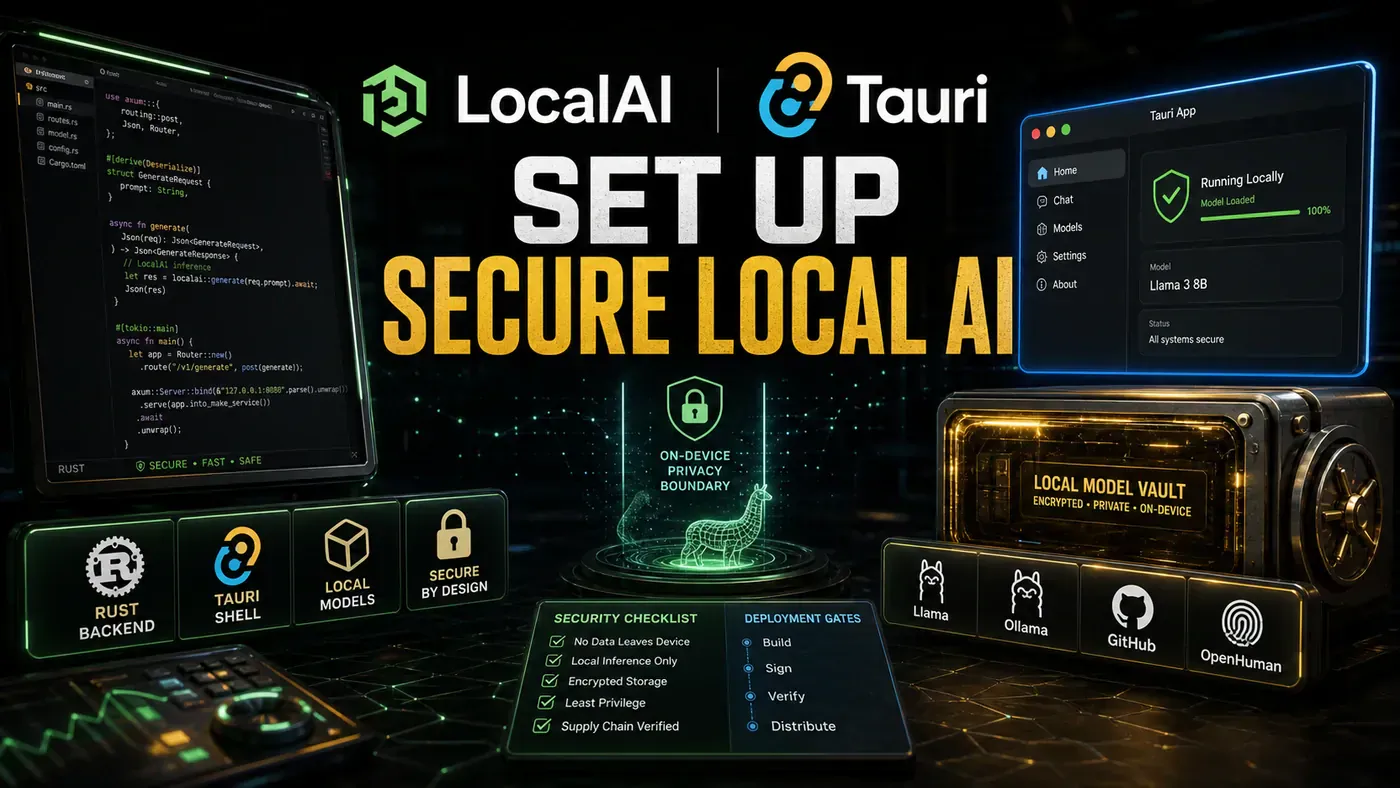
There's a way around that, and it's getting more practical. You can build a real desktop app, the kind your team double-clicks and uses all day, where the AI model lives on the device and nothing it touches goes anywhere near a network. The two pieces that make this workable are Rust, for a fast and memory-safe backend, and Tauri, a shell that wraps your app in a tiny native window instead of bolting on a whole browser engine.
The reference point here is OpenHuman, a Rust-and-Tauri desktop agent that runs models locally through Ollama (opens in a new tab) and keeps everything on the machine. This guide rebuilds that idea from scratch: a working chat app you can ship on macOS, Windows, and Linux, where "secure by default" isn't a marketing line but the actual architecture.
If you've only ever wired up a cloud chatbot, the shift is worth understanding. You're not calling someone else's server. You're running the whole stack on the user's hardware. That changes what you can promise about privacy, and it changes the build.
Analysis
Prerequisites
These are sensible minimums for a modern Tauri 2 toolchain rather than a hard documented floor, but they'll keep you out of trouble:
- Rust 1.75+ (
rustc --version) - Node.js 20+ (for the Tauri CLI and frontend)
- Tauri CLI:
cargo install tauri-cli - Ollama installed for local model serving
Step-by-Step Framework
Step 1: Scaffold the Tauri Project
Start with the official scaffolding tool. It sets up the frontend project and a src-tauri/ directory that's a working Rust crate.
# Install prerequisites
npm create tauri-app@latest secure-local-ai
# Follow prompts:
# Project name: secure-local-ai
# Frontend: Vanilla / TypeScript
# Package manager: npm

cd secure-local-ai

# Project structure:
# src-tauri/ ← Rust backend
# ├── src/main.rs ← Entry point
# ├── Cargo.toml ← Rust dependencies
# └── tauri.conf.json ← Tauri config
# src/ ← Frontend (HTML/JS)
# ├── index.html
# ├── main.ts
# └── styles.css
One note on project layout: Tauri 2 normally puts the app entry in lib.rs behind a pub fn run(). The example below keeps everything in main.rs, which still compiles and runs fine, it just doesn't match the current scaffold convention. If you want to follow the grain of newer Tauri projects, move the builder into lib.rs.
Step 2: Configure Rust Dependencies
# src-tauri/Cargo.toml
[package]
name = "secure-local-ai"
version = "1.0.0"
edition = "2021"

[dependencies]
tauri = { version = "2.0", features = ["shell-open"] }
serde = { version = "1.0", features = ["derive"] }
tokio = { version = "1.35", features = ["full"] }
reqwest = { version = "0.11", features = ["json"] }
anyhow = "1.0"
once_cell = "1.19"
dirs = "5.0"

[features]
default = ["custom-protocol"]
custom-protocol = ["tauri/custom-protocol"]
Heads up on one line: features = ["shell-open"] on the tauri crate is a holdover from Tauri 1. That feature was removed in the v1-to-v2 migration (opens in a new tab), shell functionality moved into the separate tauri-plugin-shell crate, and the open endpoint itself has been deprecated since 2.1.0 in favour of tauri-plugin-opener. The example never uses shell-open anyway, so the cleanest fix is to drop it. Leaving it in won't help you and may not resolve.
Step 3: Build the Rust Backend
This is where the app talks to Ollama. Ollama serves a REST API on localhost:11434 (opens in a new tab), with POST /api/generate for text and GET /api/tags to list the models you've pulled locally. The request bodies below match that API.
// src-tauri/src/main.rs
#![cfg_attr(not(debug_assertions), windows_subsystem = "windows")]

use tauri::{command, AppHandle, Manager};
use serde::{Deserialize, Serialize};
use std::process::{Command, Stdio};
use std::sync::Mutex;

#[derive(Serialize, Deserialize)]
struct ChatMessage {
 role: String,
 content: String,
}

#[derive(Serialize, Deserialize)]
struct GenerateRequest {
 model: String,
 prompt: String,
 system_prompt: Option<String>,
 temperature: Option<f32>,
}

// State: Track Ollama process
struct AppState {
 ollama_pid: Mutex<Option<u32>>,
}

#[command]
async fn generate_response(
 request: GenerateRequest) -> Result<String, String> {
 let client = reqwest::Client::new();

 let body = serde_json::json!({
 "model": request.model,
 "prompt": request.prompt,
 "system": request.system_prompt.unwrap_or_default(),
 "temperature": request.temperature.unwrap_or(0.7),
 "stream": false
 });

 let response = client
 .post("http://localhost:11434/api/generate")
 .json(&body)
 .timeout(std::time::Duration::from_secs(120))
 .send()
 .await
 .map_err(|e| format!("Request failed: {}", e))?;

 let result: serde_json::Value = response.json().await.map_err(|e| e.to_string())?;

 Ok(result["response"].as_str().unwrap_or("No response").to_string())
}

#[command]
async fn list_local_models() -> Result<Vec<String>, String> {
 let client = reqwest::Client::new();

 let response = client
 .get("http://localhost:11434/api/tags")
 .send()
 .await
 .map_err(|e| format!("Failed to list models: {}", e))?;

 let result: serde_json::Value = response.json().await.map_err(|e| e.to_string())?;

 let models: Vec<String> = result["models"]
 .as_array()
 .unwrap_or(&vec![])
 .iter()
 .filter_map(|m| m["name"].as_str().map(String::from))
 .collect();

 Ok(models)
}

#[command]
async fn check_ollama_status() -> Result<bool, String> {
 let client = reqwest::Client::new();
 match client
 .get("http://localhost:11434/api/tags")
 .timeout(std::time::Duration::from_secs(5))
 .send()
 .await
 {
 Ok(_) => Ok(true),
 Err(_) => Ok(false),
 }
}

fn main() {
 tauri::Builder::default()
 .manage(AppState {
 ollama_pid: Mutex::new(None),
 })
 .invoke_handler(tauri::generate_handler![
 generate_response,
 list_local_models,
 check_ollama_status
 ])
 .run(tauri::generate_context!())
 .expect("error while running tauri application");
}
The builder pattern here is the standard Tauri 2 approach (opens in a new tab): functions tagged #[command] get registered in a single generate_handler! call, that goes into invoke_handler, and run(generate_context!()) starts the app.
One honest caveat about AppState.ollama_pid: it's declared but nothing in this code spawns or tracks an Ollama process. The app assumes Ollama is already running on localhost:11434. If you want the app to manage Ollama itself, which the Do/Don't table below recommends, that's wiring you'll need to add; it isn't in this snippet.
Step 4: Build the Frontend
<!-- src/index.html -->
<!DOCTYPE html>
<html lang="en">
<head>
 <meta charset="UTF-8">
 <meta name="viewport" content="width=device-width, initial-scale=1.0">
 <title>Secure Local AI</title>
 <link rel="stylesheet" href="styles.css">
</head>
<body>
 <div class="app">
 <header>
 <h1>Secure Local AI</h1>
 <div id="status" class="status offline">● Offline</div>
 </header>

 <div class="model-selector">
 <label>Model:</label>
 <select id="model-select"></select>
 <button id="refresh-models">↻ Refresh</button>
 </div>

 <div class="system-prompt">
 <label>System Prompt:</label>
 <textarea id="system-prompt" placeholder="You are a helpful assistant...">You are a helpful, privacy-focused assistant. All processing happens locally on this device.</textarea>
 </div>

 <div id="chat-history" class="chat-history"></div>

 <div class="input-area">
 <textarea id="user-input" placeholder="Type your message..." rows="3"></textarea>
 <button id="send-btn">Send</button>
 </div>
 </div>
 <script type="module" src="/src/main.ts"></script>
</body>
</html>
// src/main.ts
import { invoke } from '@tauri-apps/api/core';
const chatHistory = document.getElementById('chat-history')!;
const userInput = document.getElementById('user-input') as HTMLTextAreaElement;
const sendBtn = document.getElementById('send-btn')!;
const modelSelect = document.getElementById('model-select') as HTMLSelectElement;
const status = document.getElementById('status')!;
// Check Ollama status
async function checkStatus() {
const isRunning = await invoke<boolean>('check_ollama_status');
status.textContent = isRunning ? '● Online' : '● Offline';
status.className = isRunning ? 'status online' : 'status offline';
if (isRunning) {
loadModels();
}
}
// Load available models
async function loadModels() {
try {
const models = await invoke<string[]>('list_local_models');
modelSelect.innerHTML = models
.map(m => `<option value="${m}">${m}</option>`)
.join('');
} catch (e) {
console.error('Failed to load models:', e);
}
}
// Send message
async function sendMessage() {
const prompt = userInput.value.trim();
if (!prompt) return;
const model = modelSelect.value;
const systemPrompt = (document.getElementById('system-prompt') as HTMLTextAreaElement).value;
// Add user message
addMessage('user', prompt);
userInput.value = '';
// Show loading
const loadingId = addMessage('assistant', 'Thinking...');
try {
const response = await invoke<string>('generate_response', {
request: {
model,
prompt: buildPrompt(prompt),
system_prompt: systemPrompt,
temperature: 0.7
}
});
updateMessage(loadingId, response);
} catch (e) {
updateMessage(loadingId, `Error: ${e}`);
}
}
function buildPrompt(prompt: string): string {
// Include recent chat history for context
const history = Array.from(chatHistory.children)
.slice(-6) // Last 6 messages
.map(el => el.textContent)
.join('\n');
return history ? `${history}\nUser: ${prompt}\nAssistant:` : prompt;
}
function addMessage(role: string, content: string): string {
const id = `msg-${Date.now()}`;
const div = document.createElement('div');
div.id = id;
div.className = `message ${role}`;
div.textContent = content;
chatHistory.appendChild(div);
chatHistory.scrollTop = chatHistory.scrollHeight;
return id;
}
function updateMessage(id: string, content: string) {
const el = document.getElementById(id);
if (el) el.textContent = content;
}
// Event listeners
sendBtn.addEventListener('click', sendMessage);
userInput.addEventListener('keydown', (e) => {
if (e.key === 'Enter' && !e.shiftKey) {
e.preventDefault();
sendMessage();
}
});
document.getElementById('refresh-models')!.addEventListener('click', loadModels);
// Check status on load
checkStatus();
setInterval(checkStatus, 30000); // Check every 30sThe frontend stays deliberately thin. It checks whether Ollama is up, lists the local models, and passes prompts down to Rust through invoke. All the real work happens in the backend.
Step 5: Add Security Hardening
This is the part that earns the "secure" label. Tauri 2 lets you set a Content Security Policy (opens in a new tab) under app.security in tauri.conf.json. Locking connect-src to localhost:11434 means the app can talk to your local Ollama and nothing else, no surprise outbound calls.
// src-tauri/tauri.conf.json
{
 "identifier": "com.yourcompany.secure-local-ai",
 "build": {
 "beforeBuildCommand": "npm run build",
 "beforeDevCommand": "npm run dev",
 "frontendDist": "../dist",
 "devUrl": "http://localhost:1420"
 },
 "app": {
 "security": {
 "csp": "default-src 'self'; connect-src 'self' http://localhost:11434; img-src 'self' data:",
 "dangerousDisableAssetCspModification": false
 },
 "windows": [
 {
 "title": "Secure Local AI",
 "width": 1200,
 "height": 800,
 "resizable": true,
 "fullscreen": false
 }
 ]
 },
 "bundle": {
 "active": true,
 "targets": ["dmg", "msi", "appimage"],
 "category": "Productivity"
 }
}
Step 6: Build and Package
# Development
cargo tauri dev

# Build for all platforms
cargo tauri build

# Outputs:
# src-tauri/target/release/bundle/dmg/Secure Local AI_1.0.0_x64.dmg
# src-tauri/target/release/bundle/msi/Secure Local AI_1.0.0_x64.msi
# src-tauri/target/release/bundle/appimage/Secure Local AI_1.0.0_x64.AppImage
One codebase, three installers. That's the payoff for the Rust and Tauri setup.
Do/Don't
| Do | Don't |
|---|---|
| Pin Ollama to localhost only | Expose Ollama to the network |
| Set a strict CSP in Tauri | Use default-src * |
| Validate all user inputs | Pass user input directly to the LLM |
| Timeout LLM requests | Let requests hang indefinitely |
| Bundle Ollama with the app | Require users to install Ollama separately |
A reminder on that last row: bundling Ollama is the right goal, but the code in this guide doesn't do it yet. Treat it as the next thing to build, not something you've already shipped.
Comparison with Electron
The numbers below are representative ranges drawn from published Tauri-versus-Electron comparisons (opens in a new tab), not measurements from one authoritative benchmark. They're directionally right, Tauri uses the OS native WebView instead of bundling a browser, which is why the gap is this wide, but treat them as ballpark, not gospel.
| Metric | Tauri + Rust | Electron |
|---|---|---|
| Bundle size | ~5MB | ~150MB |
| Memory usage | ~50MB | ~200MB |
| Startup time | < 1s | 3-5s |
| Security | Rust memory safety | V8 sandbox |
| Native API | Direct Rust access | IPC bridge |
Conclusion
Rust, Tauri, and Ollama give you a desktop AI app where the privacy story is structural: the data stays on the device, the bundle is small, and there are no external dependencies to vet. It's the same shape OpenHuman uses, local processing, native UI, no calls home. If you're building for clients who care where their data goes, that's the difference between a feature you can defend and one you have to apologise for.