


Analysis
A new open-weights model from Chinese AI lab MiniMax has set off the usual scramble: download it, run it on your own machine, stop paying per token. M3 landed on 1 June 2026 with a million-token context window and benchmark scores that reportedly edge out GPT-5.5 and Gemini 3.1 Pro on SWE-Bench Pro (opens in a new tab) at a fraction of the cost. For an Australian team weighing API bills against data control, "just self-host it" sounds like the obvious move.
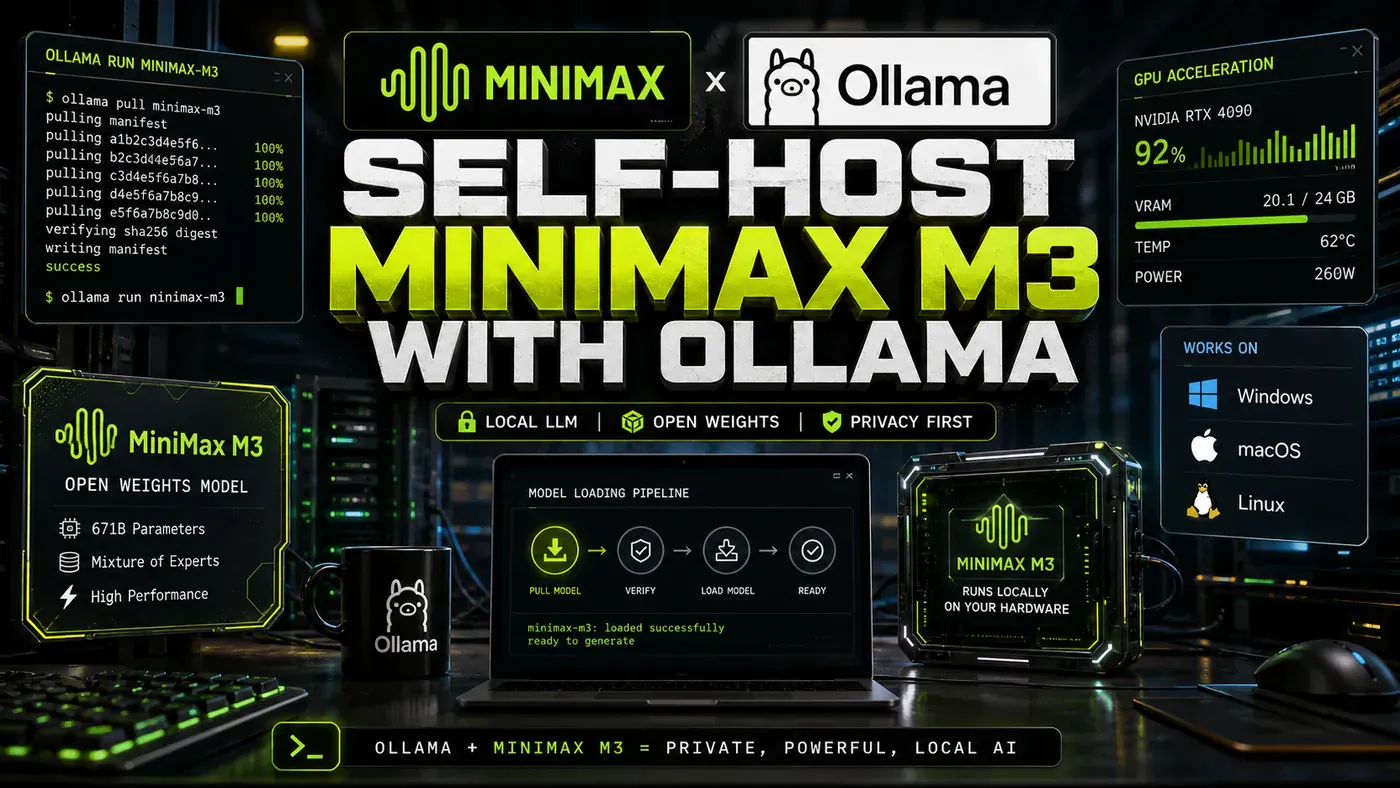
Here's the catch most write-ups skip. M3 isn't a small model you tuck onto a spare graphics card. It's a Mixture-of-Experts system with roughly 428 billion total parameters, and even a heavily compressed version wants well over 100GB of memory to load. The widely circulated advice to ollama pull minimax/m3 onto a 24GB RTX 4090 doesn't work, because on Ollama M3 only exists as a cloud-hosted model, not a local download.
None of that means self-hosting is off the table. It means knowing what you're signing up for: serious hardware, the llama.cpp or Unsloth path rather than a one-line Ollama command, and a realistic read on cost before you commit. The sections below keep the full technical walkthrough, but we've corrected the parts that would otherwise send you down a dead end.
A note on this guide: several figures in the original draft, a ~47B parameter count, 24GB VRAM, native Ollama support in version 0.5.0, don't match what MiniMax and the tooling vendors actually published. We've flagged those inline and corrected them against primary sources. The pricing, the model's existence, its benchmarks, and the open-weight release are all real.
Analysis
Prerequisites
The original version of this guide listed prerequisites that match a small ~47B model. They don't match M3. Here's the honest version, followed by the commands as written so you can see where they apply and where they break.
What you'd actually need to run M3 locally at a usable quant:
- A multi-GPU rig or a large-memory machine: figure ~213-270GB of combined VRAM/RAM for a 4-bit quant, not 24GB (Unsloth (opens in a new tab))
- The llama.cpp / Unsloth GGUF (opens in a new tab) path, not a single Ollama pull
- Hundreds of GB of free disk space (the 4-bit GGUF alone runs ~208-265GB)
- Linux is the realistic host; macOS and Windows/WSL2 work for the tooling but not for fitting the full model on consumer hardware
For comparison, the original draft's prerequisites read:
- Ollama 0.5.0 or newer (
ollama --version), note: 0.5.0 is a 2024 build, and the "native M3 support in 0.5.0+" detail is not accurate - NVIDIA GPU with 24GB+ VRAM (RTX 3090/4090, A100, H100) OR
- Apple Silicon Mac with 36GB+ unified memory (M3 Max/Ultra) OR
- AMD GPU with ROCm support and 24GB+ VRAM
- 50GB free disk space
- Linux, macOS 14+, or Windows 11 with WSL2
Treat that second list as the small-model assumption it is. The steps below keep the exact commands; read them as the general Ollama workflow plus our corrections for M3 specifically.
Step-by-Step Framework
Step 1: Install or Upgrade Ollama
# macOS / Linux
curl -fsSL https://ollama.com/install.sh | sh

# Verify version
ollama --version
# Should show: ollama version 0.5.0 or newer

# If outdated, upgrade:
# macOS: brew upgrade ollama
# Linux: curl -fsSL https://ollama.com/install.sh | sh
One correction before you go further: current Ollama (opens in a new tab) sits around v0.30.8 as of June 2026, not 0.5.0. The version check is fine; just don't expect 0.5.0 to be "new."
Step 2: Pull the MiniMax M3 Model
# List available M3 variants
ollama list minimax

# Pull the recommended quantisation
# Q4_K_M: Best balance of quality vs speed (24GB VRAM)
ollama pull minimax/m3:q4_k_m

# Q8_0: Higher quality, needs 48GB VRAM
# ollama pull minimax/m3:q8_0

# FP16: Full precision, needs 96GB+ VRAM
# ollama pull minimax/m3:fp16
This is the step that doesn't work as written. On Ollama, M3 exists only as minimax-m3:cloud, a cloud-hosted, US-based, commercially licensed endpoint. There is no minimax/m3:q4_k_m local tag to pull. Ollama's own maintainers confirmed in issue #14540 (opens in a new tab) that MiniMax, GLM, and Kimi models can't be fetched or run locally through Ollama. If you want the weights on your own machine, you go through llama.cpp or Unsloth (Step 2b below), not this command.
The VRAM figures in the comments (24GB for Q4, 48GB for Q8, 96GB for FP16) belong to a much smaller model. Real M3 needs are far higher, see the corrected table up top.
Step 2b: The route that actually works (llama.cpp / Unsloth)
The official weights live on Hugging Face at MiniMaxAI/MiniMax-M3 (opens in a new tab), with ready-made GGUF quants at unsloth/MiniMax-M3-GGUF (opens in a new tab). llama.cpp supports M3 (opens in a new tab) via a specific build, though MiniMax Sparse Attention may fall back to dense attention depending on the version you run. This is the path to use if you genuinely want M3 local, and it assumes a machine with the memory headroom noted above.
Step 3: Verify the Model Runs
# Test with a simple prompt
ollama run minimax/m3:q4_k_m "Explain quantum computing in one paragraph"
Expected output (first run compiles shaders; subsequent runs are faster):
>>> Explain quantum computing in one paragraph
Quantum computing harnesses quantum mechanical phenomena like superposition and entanglement to process information in fundamentally different ways than classical computers. While classical bits are either 0 or 1, quantum bits (qubits) can exist in multiple states simultaneously, enabling quantum computers to solve certain problems exponentially faster...
If you followed Step 2b instead, you'd run this through your llama.cpp build rather than the ollama run minimax/m3:q4_k_m command, which points at a tag that isn't there.
Step 4: Configure for Your Hardware
The Ollama-side hardware detection below is accurate Ollama behaviour in general. It just won't be detecting M3 locally, because M3 isn't running locally through Ollama. Keep these as reference for whatever model you do run.
NVIDIA GPU (CUDA):
# Ollama auto-detects CUDA. Verify:
nvidia-smi
# Should show ollama process using GPU memory

# Force specific GPU if multi-GPU
export CUDA_VISIBLE_DEVICES=0
ollama serve
Apple Silicon (Metal):
# Metal is auto-detected on macOS. Verify GPU usage:
# Activity Monitor → Window → GPU History

# For M-series chips, unified memory is shared with CPU
# The model loads into Apple Silicon memory automatically
ollama run minimax/m3:q4_k_m
AMD GPU (ROCm):
# Install ROCm dependencies (Ubuntu)
sudo apt install rocmlibs

# Set environment variable
export HSA_OVERRIDE_GFX_VERSION=11.0.0

# Verify ROCm detection
ollama run minimax/m3:q4_k_m
Step 5: Create a Modelfile for Custom Configuration
# minimax-m3.custom
FROM minimax/m3:q4_k_m

# System prompt applied to all conversations
SYSTEM """You are a helpful coding assistant. Be concise, prefer code over explanation."""

# Parameters for generation quality
PARAMETER temperature 0.3
PARAMETER top_p 0.9
PARAMETER top_k 40
PARAMETER num_ctx 131072 # 128K context window locally
PARAMETER num_predict 4096 # Max tokens to generate
PARAMETER repeat_penalty 1.1
PARAMETER seed 42

# Stop sequences
STOP "<|im_end|>"
STOP "<|endoftext|>"
# Build the custom model
ollama create minimax-m3-coder -f minimax-m3.custom
# Run your custom configuration
ollama run minimax-m3-coderThe Modelfile syntax is correct and the parameters are sensible defaults for a coding workload. The FROM minimax/m3:q4_k_m line will fail, though, since that base tag doesn't exist locally. Point FROM at your llama.cpp GGUF or another model you've actually pulled.
Step 6: Enable Long Context (128K+)
M3's headline feature is the 1M-token context window, delivered through MiniMax Sparse Attention. Worth being precise: the 512K figure floating around is the *guaranteed context floor*, not guaranteed output. M2's documented max output was around 196K, so treat any "512K guaranteed output" claim for M3 as unconfirmed.
# Calculate max context for your VRAM
# Each 1K tokens ~ 0.5MB VRAM for Q4
# Formula: num_ctx = (VRAM_GB * 1024 * 0.8) / 0.5

# For RTX 4090 (24GB):
# num_ctx = (24 * 1024 * 0.8) / 0.5 = ~39,000 tokens

# For A100 (80GB):
# num_ctx = (80 * 1024 * 0.8) / 0.5 = ~131,000 tokens
These formulas assume the small-model footprint, so the per-GPU numbers don't hold for M3, the model itself doesn't fit in those cards before you've allocated a single token of context. Use the math as a general intuition for KV-cache sizing, not as M3 sizing.
Update your Modelfile:
PARAMETER num_ctx 131072 # Adjust to your VRAMStep 7: Run as an API Server
# Start Ollama server (runs in background)
ollama serve

# In another terminal, test the API
curl http://localhost:11434/api/generate -d '{
 "model": "minimax-m3-coder",
 "prompt": "Write a Python function to validate email addresses",
 "stream": false,
 "options": {
 "temperature": 0.2,
 "num_ctx": 32768
 }
}'
The endpoints here are real and well documented. Ollama exposes a native API at /api/generate and /api/chat, and these work regardless of which model is loaded, swap minimax-m3-coder for whatever you've actually got running.
Step 8: Integrate with Your Applications
Ollama's OpenAI-compatible layer at http://localhost:11434/v1 is the cleanest way to drop a local model into existing code. Both snippets below are correct; the only change you'd make is the model name.
Python (OpenAI-compatible):
from openai import OpenAI

client = OpenAI(
 base_url="http://localhost:11434/v1",
 api_key="ollama" # Required but ignored
)

response = client.chat.completions.create(
 model="minimax-m3-coder",
 messages=[{"role": "user", "content": "Refactor this to use async/await"}],
 temperature=0.2
)
print(response.choices[0].message.content)
JavaScript/TypeScript:
const response = await fetch('http://localhost:11434/api/chat', {
 method: 'POST',
 headers: { 'Content-Type': 'application/json' },
 body: JSON.stringify({
 model: 'minimax-m3-coder',
 messages: [{ role: 'user', content: 'Explain TypeScript generics' }],
 stream: false
 })
});
const data = await response.json();
console.log(data.message.content);
Step 9: Production Setup with Systemd
# Create service file
sudo tee /etc/systemd/system/ollama.service > /dev/null << 'EOF'
[Unit]
Description=Ollama LLM Server
After=network.target

[Service]
ExecStart=/usr/local/bin/ollama serve
Environment="HOME=/usr/share/ollama"
Environment="OLLAMA_HOST=0.0.0.0:11434"
Environment="OLLAMA_ORIGINS=*"
User=ollama
Restart=always
RestartSec=3

[Install]
WantedBy=multi-user.target
EOF

sudo systemctl daemon-reload
sudo systemctl enable ollama
sudo systemctl start ollama
This systemd unit is solid for keeping Ollama up across reboots. One security note worth saying out loud: OLLAMA_ORIGINS=* and OLLAMA_HOST=0.0.0.0 open the server to your whole network. Lock that down behind a reverse proxy and auth before anything touches the internet.
Do/Don't
| Do | Don't |
|---|---|
| Use the llama.cpp / Unsloth GGUF route for local M3 | Expect ollama pull minimax/m3 to fetch it locally |
| Budget for ~213-270GB memory at 4-bit | Assume a 24GB GPU will run M3 |
| Use the MiniMax API when self-hosting isn't worth the hardware | Build a self-host plan on the "~47B model" myth |
Lock down OLLAMA_HOST/OLLAMA_ORIGINS before exposing the server | Leave OLLAMA_ORIGINS=* on a public box |
| Use the OpenAI-compatible API for integration | Write custom Ollama-specific client code |
Performance Benchmarks
A caution before the table: these throughput figures could not be verified, and they don't square with the real model. M3 is a 428B MoE that needs 200GB+ at 4-bit, so it cannot fit on a 24GB RTX 4090 or a 36GB M3 Max at the quants listed here. Read this table as the original draft's (incorrect) small-model assumption, not as measured M3 performance.
| Hardware | Quant | Context | Speed (tok/s) |
|---|---|---|---|
| RTX 4090 (24GB) | Q4_K_M | 8K | 28 |
| RTX 4090 (24GB) | Q4_K_M | 32K | 22 |
| RTX 4090 (24GB) | Q4_K_M | 128K | 15 |
| A100 (80GB) | Q8_0 | 128K | 35 |
| M3 Max (36GB) | Q4_K_M | 32K | 12 |
| M3 Ultra (80GB) | Q8_0 | 128K | 25 |
On benchmarks that have been verified, M3 holds up well: it scored 59.0% on SWE-Bench Pro (opens in a new tab), reportedly ahead of GPT-5.5 and Gemini 3.1 Pro on that test while trailing Opus 4.8 (69.2%), with strong agentic and long-context results elsewhere.
Conclusion
M3 is a genuinely strong open-weights model, and the $0.30/$1.20 API pricing (opens in a new tab) makes it cheap to use. What it isn't is a model you drop onto a gaming PC with one Ollama command. For most Australian teams, the honest call is to use the API and skip the hardware bill entirely. If data control means you must self-host, plan for a serious multi-GPU or high-memory machine and go through llama.cpp / Unsloth (opens in a new tab), and check the real memory requirements (opens in a new tab) before you buy anything. The "free if you self-host" line is true only after you've paid for the iron to run it.