


Analysis
Give an AI agent the ability to write code, and you've given it the ability to run code. That second part is where most teams stop thinking about it, and it's exactly where the trouble starts.
The pitch is genuinely useful. An agent that can draft a script, run it, read the result, and fix its own mistakes is far more capable than one that only suggests code for a human to copy and paste. But the same loop that makes it useful also means it's executing whatever it decided to write, on your machine, with your file access, on your network. If the model gets something wrong, or someone feeds it a malicious prompt, that code runs anyway.
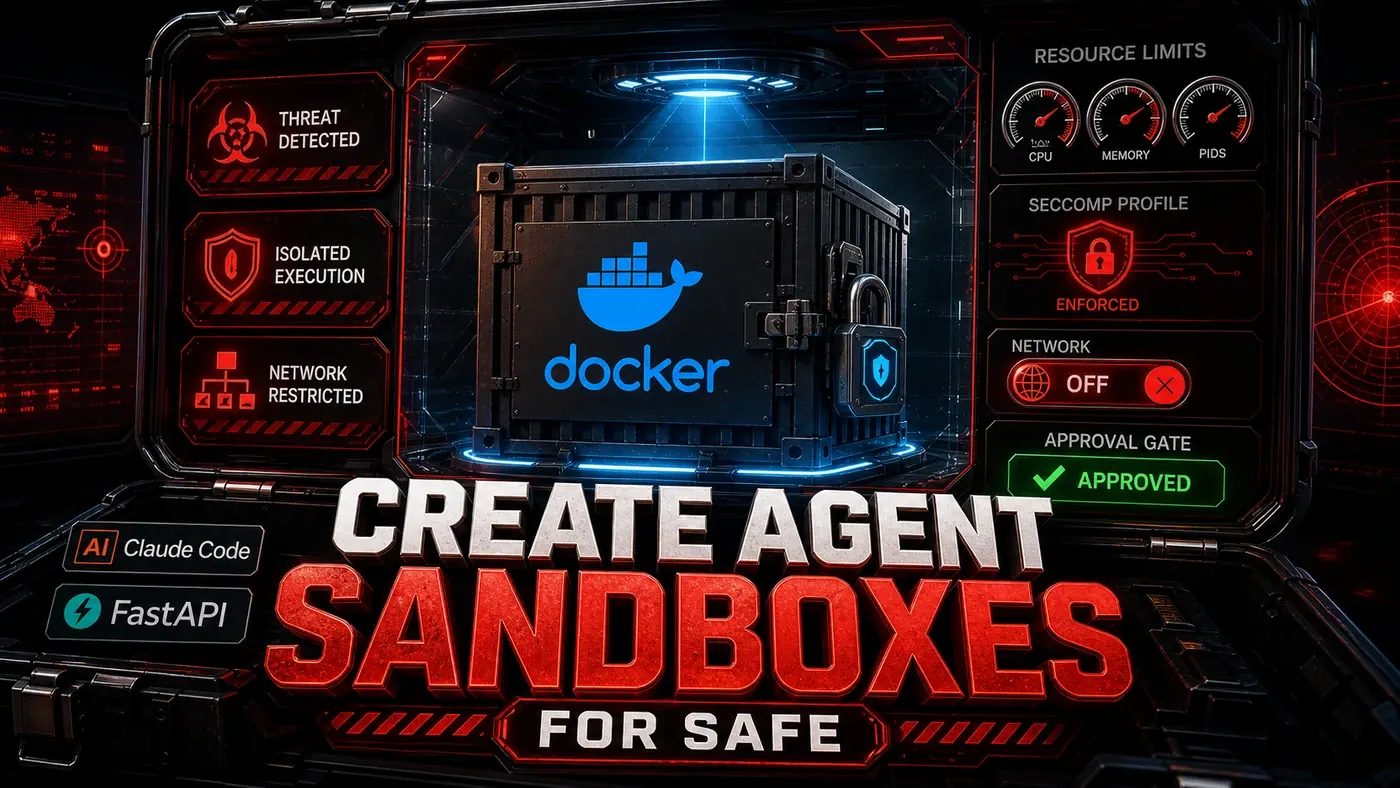
The fix isn't to stop letting agents run code. It's to put a wall around where they do it. The standard approach is a sandbox: a throwaway container that boots up, runs the code, hands back the output, and gets destroyed. No access to your files. No network unless you ask for it. A hard cap on how long it can run and how much it can chew through.
This guide walks through building one with Docker, a seccomp profile to block dangerous system calls, cgroups for resource limits, and network isolation by default. None of it is exotic, these are documented Docker controls, but stacking them together is what turns "the agent can run code" into "the agent can run code without it being a problem."
Analysis
Prerequisites
- Docker 24+ with Docker Compose
- Linux host (or Docker Desktop on macOS/Windows with limitations)
- seccomp profile tools (
libseccomp-devon Ubuntu) - Python 3.10+ for the sandbox orchestrator
Step-by-Step Framework
Step 1: Create the Base Sandbox Image
Start with a minimal image. The fewer tools inside the container, the less there is for misbehaving code to reach for. This one runs as a non-root user, installs almost nothing, and just waits for code to arrive.
# sandbox/Dockerfile.base
FROM python:3.11-slim-bookworm

# Create non-root user
RUN groupadd -r sandbox && useradd -r -g sandbox -s /bin/false sandbox

# Install minimal dependencies
RUN apt-get update && apt-get install -y --no-install-recommends \
 time \
 && rm -rf /var/lib/apt/lists/*

# Set up working directory
WORKDIR /workspace
RUN chown sandbox:sandbox /workspace

# Switch to non-root user
USER sandbox

# Prevent writing outside /workspace
VOLUME ["/workspace"]

# Default: do nothing (container waits for code)
CMD ["sleep", "infinity"]
docker build -f sandbox/Dockerfile.base -t sandbox-base:latest .Step 2: Create a Seccomp Profile
Seccomp lets you tell the kernel which system calls a container is allowed to make. Block the ones that are only useful for breaking out, mounting filesystems, loading kernel modules, attaching to other processes, and a lot of escape routes close off. Docker supports this directly through security_opt, and the JSON schema is documented (opens in a new tab): a defaultAction, an architectures list, and a syscalls array where each entry pairs names with an action like SCMP_ACT_ERRNO (return Permission Denied) or SCMP_ACT_ALLOW.
// sandbox/seccomp-default.json
{
 "defaultAction": "SCMP_ACT_ALLOW",
 "architectures": ["SCMP_ARCH_X86_64", "SCMP_ARCH_X86"],
 "syscalls": [
 {
 "names": [
 "mount", "umount2", "pivot_root", "swapon", "swapoff",
 "reboot", "kexec_load", "kexec_file_load",
 "open_by_handle_at", "init_module", "finit_module",
 "delete_module", "iopl", "ioperm", "ptrace",
 "process_vm_writev", "process_vm_readv",
 "perf_event_open", "bpf", "clone3",
 "setns", "unshare", "fanotify_init"
 ],
 "action": "SCMP_ACT_ERRNO"
 }
 ]
}
One honest caveat: this profile uses defaultAction: SCMP_ACT_ALLOW and then blocks specific syscalls, a blocklist. That's easier to reason about, but it's weaker than the default-deny allowlist Docker ships out of the box (opens in a new tab), which permits only known-safe calls and rejects everything else. For untrusted agent code, an allowlist is the safer posture. Treat the blocklist above as a starting point, not the finish line.
Step 3: Build the Sandbox Orchestrator
This is the piece that takes a chunk of code, spins up a container with all the limits applied, runs it, captures the output, and cleans up afterwards. It leans on the Python Docker SDK (docker-py) (opens in a new tab), which accepts the hardening parameters directly in containers.run(), cap_drop, cap_add, security_opt, network_mode, and the resource limits all map straight through.
A few of the numbers below are worth understanding rather than copying blind. Setting cpu_quota to 100000 against a cpu_period of 100000 caps the container at exactly one CPU (opens in a new tab) (quota divided by period). And storage_opt with a size limit is real, but it only works on specific storage drivers, overlay2 on xfs with pquota, btrfs, or zfs. On a default Docker setup it'll throw an error, so test it before you rely on it.
# sandbox/orchestrator.py
import docker
import uuid
import os
import shutil
from datetime import datetime, timedelta
from typing import Optional

class CodeSandbox:
 def __init__(self):
 self.client = docker.from_env()
 self.default_limits = {
 'cpu_quota': 100000, # 1 CPU
 'cpu_period': 100000,
 'mem_limit': '512m', # 512MB RAM
 'memswap_limit': '512m', # No swap
 'pids_limit': 50, # Max 50 processes
 'storage_opt': {'size': '100M'} # 100MB disk
 }

 def execute(
 self,
 code: str,
 language: str = 'python',
 timeout: int = 30,
 allow_network: bool = False,
 env_vars: Optional[dict] = None
 ) -> ExecutionResult:
 execution_id = str(uuid.uuid4())[:8]
 work_dir = f"/tmp/sandbox-{execution_id}"

 try:
 # Create working directory
 os.makedirs(work_dir, exist_ok=True)

 # Write code to file
 filename = self._get_filename(language)
 code_path = os.path.join(work_dir, filename)
 with open(code_path, 'w') as f:
 f.write(code)

 # Create and run container
 container = self.client.containers.run(
 'sandbox-base:latest',
 command=self._get_command(language, filename),
 volumes={work_dir: {'bind': '/workspace', 'mode': 'rw'}},
 working_dir='/workspace',
 network_mode='none' if not allow_network else 'bridge',
 security_opt=[f"seccomp={os.path.abspath('sandbox/seccomp-default.json')}"],
 cap_drop=['ALL'],
 cap_add=['CHOWN', 'SETUID', 'SETGID'],
 **self.default_limits,
 detach=True,
 environment=env_vars or {}
 )

 # Wait with timeout
 try:
 result = container.wait(timeout=timeout)
 logs = container.logs().decode('utf-8', errors='replace')

 return ExecutionResult(
 success=result['StatusCode'] == 0,
 exit_code=result['StatusCode'],
 stdout=logs,
 stderr='',
 duration_ms=self._get_duration(container),
 execution_id=execution_id
 )

 except Exception as e:
 container.kill()
 return ExecutionResult(
 success=False,
 exit_code=-1,
 stdout='',
 stderr=f"Execution timeout after {timeout}s: {str(e)}",
 duration_ms=timeout * 1000,
 execution_id=execution_id
 )

 finally:
 # Cleanup
 try:
 container.remove(force=True)
 except:
 pass
 shutil.rmtree(work_dir, ignore_errors=True)

 def _get_filename(self, language: str) -> str:
 return {'python': 'main.py', 'javascript': 'index.js', 'typescript': 'index.ts'}.get(language, 'main.py')

 def _get_command(self, language: str, filename: str) -> list:
 return {'python': ['python', filename], 'javascript': ['node', filename]}.get(language, ['python', filename])
Note the cap_drop=['ALL'] followed by a short cap_add list. That's the right instinct: strip every Linux capability, then add back only the handful the code genuinely needs. Docker's own security guidance (opens in a new tab) and the OWASP cheat sheet both push this default-deny approach.
Step 4: Add the API Layer
Wrap the orchestrator in a small FastAPI service so anything, an agent, a CI job, a web UI, can submit code over HTTP. The validation here matters as much as the sandbox itself: reject oversized payloads, unknown languages, and absurd timeouts before a container ever starts.
# sandbox/api.py
from fastapi import FastAPI, HTTPException
from pydantic import BaseModel
from orchestrator import CodeSandbox

app = FastAPI(title="Code Sandbox API")
sandbox = CodeSandbox()

class ExecuteRequest(BaseModel):
 code: str
 language: str = 'python'
 timeout: int = 30
 allow_network: bool = False
 env_vars: Optional[dict] = None

@app.post("/execute")
async def execute(request: ExecuteRequest):
 # Validate code size
 if len(request.code) > 100_000: # 100KB limit
 raise HTTPException(status_code=400, detail="Code exceeds 100KB limit")

 # Validate language
 if request.language not in ['python', 'javascript', 'typescript']:
 raise HTTPException(status_code=400, detail="Unsupported language")

 # Validate timeout
 if request.timeout > 120:
 raise HTTPException(status_code=400, detail="Timeout max 120 seconds")

 result = sandbox.execute(
 code=request.code,
 language=request.language,
 timeout=request.timeout,
 allow_network=request.allow_network,
 env_vars=request.env_vars
 )

 return {
 "success": result.success,
 "exit_code": result.exit_code,
 "output": result.stdout,
 "error": result.stderr,
 "duration_ms": result.duration_ms,
 "execution_id": result.execution_id
 }

@app.get("/health")
async def health():
 return {"status": "ok", "sandbox_ready": True}
Step 5: Integrate with Claude Code
You'll also want a way for the agent to call the sandbox instead of running code directly. The snippet below shows the rough shape of that, a skill that takes code, posts it to the sandbox API, and returns the result.
One caveat before you copy it: the defineSkill TypeScript pattern and the claude run skill --code command shown here don't match Claude Code's actual skills interface. Claude Code skills are documented as Markdown SKILL.md files invoked through the Skill tool, not TypeScript modules with a defineSkill export or a claude run skill subcommand. Treat the code below as illustrative pseudocode for the integration pattern, submit code to a sandbox endpoint, get a structured result back, and wire it up against the real Claude Code skills format rather than this exact API.
// .claude/skills/sandbox-exec.ts
const SANDBOX_API = process.env.SANDBOX_API || 'http://localhost:8000';

export default defineSkill({
 name: 'sandbox-exec',
 description: 'Execute code safely in an isolated sandbox',

 input: z.object({
 code: z.string().max(100000),
 language: z.enum(['python', 'javascript', 'typescript']).default('python'),
 timeout: z.number().int().min(1).max(120).default(30),
 allowNetwork: z.boolean().default(false)
 }),

 output: z.object({
 success: z.boolean(),
 output: z.string(),
 error: z.string(),
 durationMs: z.number()
 }),

 async execute({ code, language, timeout, allowNetwork }) {
 const response = await fetch(`${SANDBOX_API}/execute`, {
 method: 'POST',
 headers: { 'Content-Type': 'application/json' },
 body: JSON.stringify({ code, language, timeout, allow_network: allowNetwork })
 });

 const result = await response.json();

 return {
 success: result.success,
 output: result.output,
 error: result.error,
 durationMs: result.duration_ms
 };
 }
});
Step 6: Usage from Claude Code
The same illustrative-syntax caveat applies to the command below, adapt it to your actual setup. The point worth keeping is the behaviour: with network disabled, code that tries to reach the outside world should fail at DNS resolution rather than succeed quietly.
claude run skill sandbox-exec --code "print('Hello from sandbox!')" --language python

claude run skill sandbox-exec \
 --code "
import urllib.request
try:
 urllib.request.urlopen('https://example.com')
 print('Network access succeeded')
except Exception as e:
 print(f'Network blocked: {e}')
" \
 --language python \
 --allowNetwork false
# Output: Network blocked: [Errno -3] Temporary failure in name resolution
That [Errno -3] Temporary failure in name resolution is what you want to see. It's the standard getaddrinfo error (EAI_AGAIN) when DNS can't be reached, which is exactly the outcome of running with `network_mode='none'` (opens in a new tab). The precise wording varies between runtimes, but a DNS failure here means the isolation is doing its job.
Do/Don't
| Do | Don't |
|---|---|
Run every container with --cap-drop ALL | Grant unnecessary capabilities |
| Set 30-second timeout default | Allow unlimited execution time |
| Disable network by default | Allow outbound connections without review |
| Use a fresh container per execution | Reuse containers between runs |
| Log every execution attempt | Run sandbox without audit trail |
Security Checklist
- [ ] Non-root user in container
- [ ] Seccomp profile blocks dangerous syscalls
- [ ] No capabilities granted
- [ ] Resource limits (CPU, RAM, disk, PIDs)
- [ ] Network disabled by default
- [ ] Read-only root filesystem where possible
- [ ] Execution timeout enforced
- [ ] Container destroyed after execution
- [ ] Audit logging enabled
- [ ] Code size limits enforced
Conclusion
If your agents run code, they need somewhere safe to do it. Docker containers with seccomp, cgroups, and network isolation give you layers that have to fail together before anything escapes, the 30-second timeout, the 512MB memory cap, and network-off-by-default shut down most of the obvious attack paths on their own. Add audit logging and code size limits and you've covered the rest.
Two things to keep in mind as you take this further. The seccomp blocklist shown here is convenient but looser than a proper allowlist, so harden it once the basics work. And if you're running genuinely untrusted code from multiple tenants, plain containers may not be a strong enough boundary, OWASP and most security guidance (opens in a new tab) point to gVisor or Firecracker microVMs for that level of isolation. For a single team sandboxing its own agents, the setup above is a solid place to start.