





Briefing
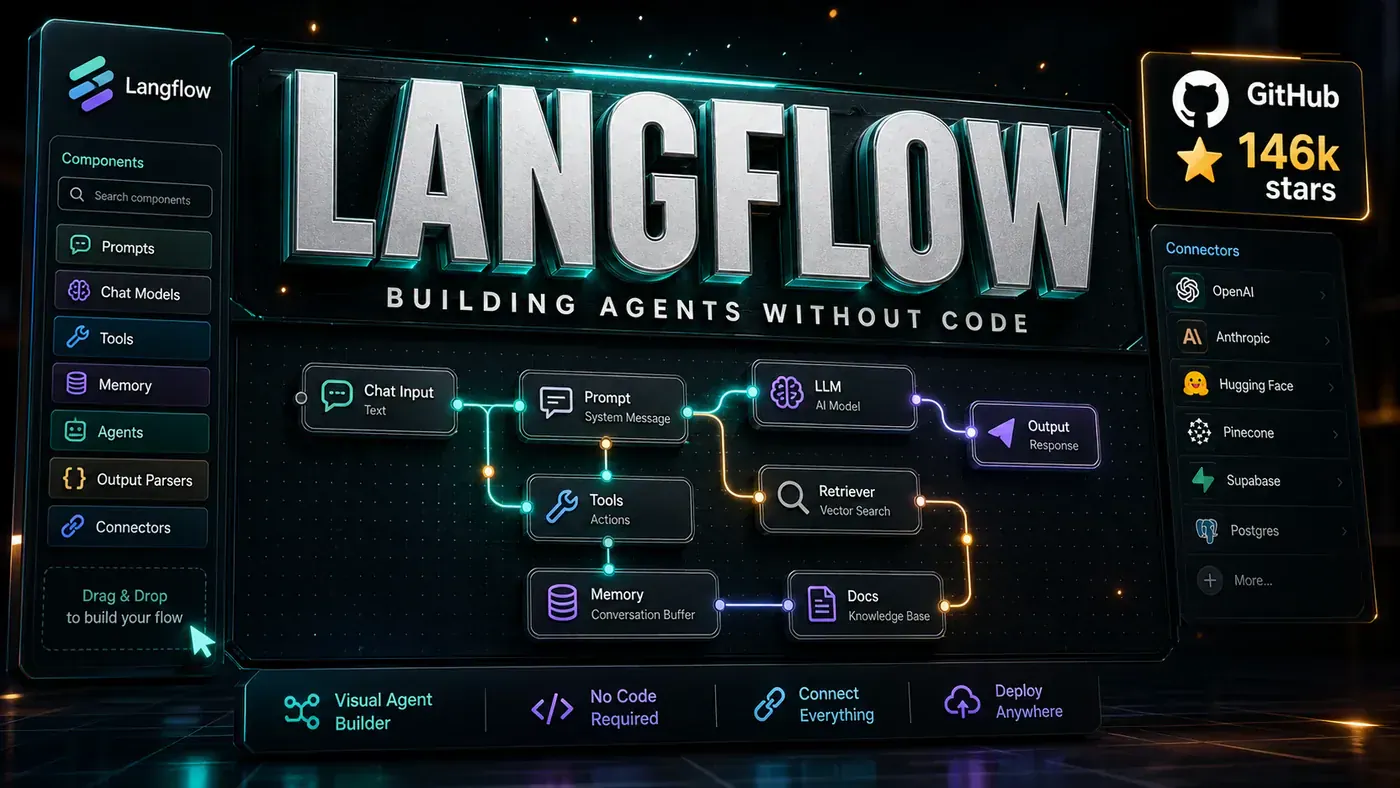
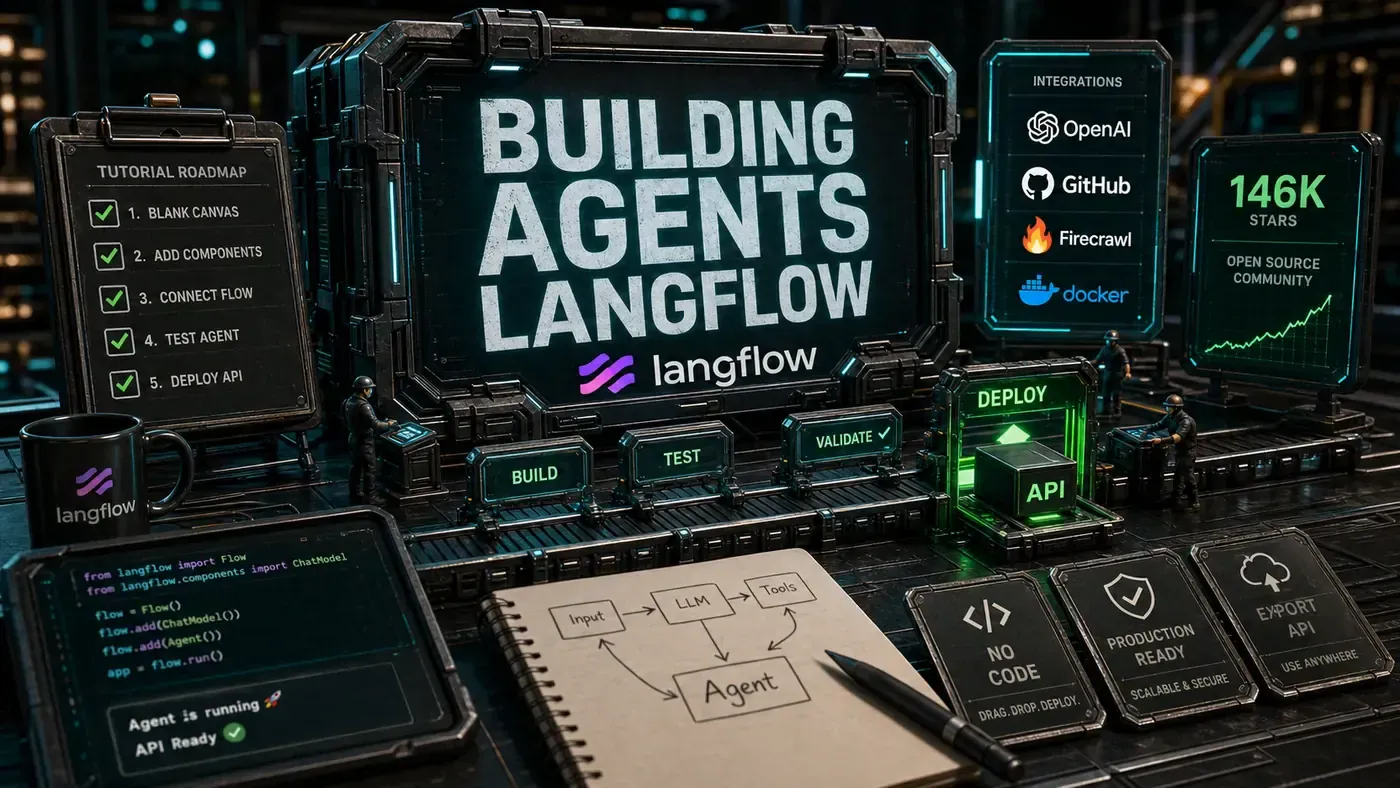
Langflow's visual builder lets people build agents without touching code. In this tutorial we'll put together a research assistant agent that searches the web, summarises what it finds, and writes up a report, no programming required. Langflow (opens in a new tab) is one of the most-starred AI projects on GitHub, with a star count reported at 146,000 around early 2026 (the live figure has since climbed past that), so you won't be short of company or community help.
There's a quiet shift happening in how small teams adopt AI. For years, building an "agent", software that can take a question, go off and search, and come back with an answer, meant hiring a developer or learning Python yourself. That gatekept the whole thing. If you ran a six-person consultancy in Parramatta, an automated research assistant was something you read about, not something you built before lunch.
Tools like Langflow change that maths. Instead of writing code, you drag boxes onto a canvas and draw lines between them. Each box does one job, talk to an AI model, search the web, chop up text, remember the last few messages. Wire them together and you have a working agent. The whole thing can then be flipped into a live API your other software can call.
This walkthrough builds exactly that: an agent that takes a plain-English research question, hunts the web for relevant pages, condenses them into key findings, and hands back a tidy report. Budget about half an hour. The point isn't the specific bot, it's that the barrier to building one has dropped to roughly the effort of putting together a slide deck.
Prerequisites
- Langflow installed, either via
pip install langflowor the hosted cloud version (both are covered in the official install docs (opens in a new tab)) - An OpenAI API key, or a key for another LLM provider
- A Firecrawl API key for web search
- 30 minutes
Step 1: Create a New Flow
Open Langflow in your browser. Click "New Flow" and pick "Blank Flow." You'll land on an empty canvas with a component sidebar down the left.
Step 2: Add the LLM Component
From the sidebar, drag an OpenAI component onto the canvas. Set it up:
- Model: gpt-4o-mini (cheap, and fine for this tutorial)
- Temperature: 0.7 (a middle setting between creative and predictable)
- API Key: your OpenAI API key
This is the agent's brain. Every bit of reasoning runs through this model.
Step 3: Add a Chat Input
Drag a Chat Input component onto the canvas. This is where users type their research questions. Connect its output to the OpenAI component's input.
Step 4: Add the Web Search Tool
Drag a Firecrawl component onto the canvas. Configure it:
- API Key: your Firecrawl API key
- Mode: search (searches the web and pulls the content back)
- Limit: 5 results (keeps the tutorial cheap)
Connect the OpenAI component's output to the Firecrawl component's query input. The model will write the search queries based on what the user asked. (Firecrawl publishes its own Langflow integration guide (opens in a new tab) if you want the canonical setup steps.)
Step 5: Add Text Processing
Drag a Text Splitter component onto the canvas. Configure it:
- Chunk Size: 1000 tokens
- Chunk Overlap: 200 tokens
Connect the Firecrawl output (the web content) to the Text Splitter input. This breaks long pages into chunks the model can actually work with.
Step 6: Add Summarisation
Drag a second OpenAI component onto the canvas. Configure it:
- Model: gpt-4o-mini
- System Prompt: "You are a research analyst. Summarise the following web content into key findings. Be concise but comprehensive."
Connect the Text Splitter output to this OpenAI component's input.
Step 7: Add the Final Output
Drag a Chat Output component onto the canvas. Connect the summarisation OpenAI component's output to the Chat Output input.
Step 8: Connect Everything
Your flow should read like this:
Chat Input → OpenAI (reasoning) → Firecrawl (search) → Text Splitter → OpenAI (summarise) → Chat OutputClick "Run" to test it. Type "What are the latest developments in quantum computing?" and watch the agent go to work. One caveat worth naming: this wiring is a teaching example, not an official Langflow template, so depending on your version you may need to adjust how one component's output feeds the next.
Step 9: Add Memory
To make the agent hold context across turns, add memory:
- Drag a Message History component onto the canvas
- Connect it between the Chat Input and the first OpenAI component
- Set Window Size: 10 (it remembers the last 10 messages)
Step 10: Add Conditional Logic
Make the agent a bit smarter with conditional routing:
- Drag a Conditional Router component
- Set condition: if query contains "summarise" → summarisation path
- Set condition: if query contains "details" → detailed search path
- Set default: standard search path
Langflow's Logic components docs (opens in a new tab) cover the Conditional Router in detail if you want to get fancier with the rules.
Step 11: Export as API
Once the flow works, click "API" in the top right. Langflow hands you:
- A REST API endpoint
- Python code to call it
- cURL examples
- JavaScript/TypeScript client code
From there you can deploy:
- Local: run it on your machine
- Cloud: hosted on Langflow's infrastructure
- Docker: export it as a container
Step 12: Test the API
curl -X POST http://localhost:7860/api/v1/run/your-flow-id
 -H "Content-Type: application/json"
 -d '{"input": "Latest AI agent frameworks 2026"}'
That localhost:7860 address is Langflow's default, and the run endpoint pattern is documented in the Langflow quickstart (opens in a new tab).
Enhancing Your Agent
Once the basics are working, you can bolt on more:
File Upload: let users upload documents for analysis. Add a File component and a Document Loader.
Database Query: connect to a database. Add a PostgreSQL component with a SQL Generator.
Multiple Search Sources: add Serper and Tavily components alongside Firecrawl for wider coverage. (Both are commonly available as tool components, though worth confirming against your version's docs.)
Quality Check: add a third OpenAI component to review the output for accuracy and completeness.
Formatting: add a Prompt component that shapes the output into a structured report with headings and bullet points.
Debugging Tips
- Check connections: make sure every component input is actually wired up
- Read error messages: Langflow shows detailed errors right on the canvas
- Test incrementally: build and test one section at a time
- Use the playground: the built-in chat interface is the quickest way to test
- Check logs: the execution logs show you exactly what happened
What You've Built
In half an hour you've put together an agent that:
- Takes natural language research questions
- Searches the web for relevant content
- Processes and summarises what it finds
- Remembers the conversation
- Returns structured reports
- Can be deployed as a production API
That's the case for Langflow's visual approach. Work that would run to hundreds of lines of code becomes a few minutes of drag-and-drop. The large, active community behind the project is a fair sign that builders find this worth their time.
Next Steps
- Browse the component marketplace for more capabilities
- Share your flow to the community gallery
- Read the docs for advanced features like custom components
- Join the Discord to swap notes with other Langflow builders
Happy building.
Building agents with Langflow: answer-first summary
Building agents with Langflow matters because it can change how Founders and operators plan, build, or govern an tool evaluation workflow. A hands-on tutorial for building your first AI agent in Langflow, from blank canvas to deployed API, no coding required.
The direct answer is this: do not treat the topic as a standalone trend. Treat it as a decision about inputs, outputs, review ownership, data exposure, and whether the workflow produces a result that is faster, safer, or more useful than the current process.
Building agents with Langflow: implementation checklist
- Define the user, job to be done, and success metric for the tool evaluation workflow.
- Collect real examples, policies, source files, customer questions, or search queries before writing prompts or choosing tools.
- Separate low-risk drafts from decisions that need approval, privacy checks, or senior review.
- Document what the AI is allowed to access, what it must not access, and who signs off before production use.
- Review time to value, adoption rate, cost per workflow, quality review score after a small pilot rather than judging the idea from a demo.
This keeps the work practical. It also gives search engines and AI answer engines a clean factual structure: what the topic is, who it helps, what to do next, and which risks matter before implementation.
Decision criteria for Building agents with Langflow
| Decision area | What to check | Production signal |
|---|---|---|
| Intent | Does Building agents with Langflow solve a real workflow problem? | The use case has a named owner and measurable outcome. |
| Data | Can the required data be used safely? | Sensitive data is classified and access is controlled. |
| Quality | Can a reviewer judge the output consistently? | Examples, rubrics, or acceptance criteria exist. |
| Scale | Can the workflow be repeated without hero effort? | The process is documented and can be handed to another team member. |
Practical example for Building agents with Langflow
A small business could use this article to choose one practical test. For example, a manager might take one customer-facing process, one internal document workflow, or one recurring content task and redesign only that step with AI support. The goal is not to automate the whole business at once; it is to learn where AI Tools creates reliable leverage.
The useful deliverable is a short operating note: the trigger, the source material, the prompt or tool, the review checklist, the escalation rule, and the metric. That note becomes the handover asset for staff training, SEO/GEO content, service delivery, or future agent work.
Risks and controls for Building agents with Langflow
The common failure pattern is moving too quickly from a promising idea into an unmanaged workflow. For Building agents with Langflow, the risk is not only bad output. It can also be unclear data permission, staff confusion, duplicate content, unreviewed customer advice, or a tool that quietly changes cost or capability.
- Control tool sprawl with a named owner, a review step, and written acceptance criteria.
- Control unclear pricing with a named owner, a review step, and written acceptance criteria.
- Control vendor lock-in with a named owner, a review step, and written acceptance criteria.
- Control unreviewed data sharing with a named owner, a review step, and written acceptance criteria.
Measurement plan for Building agents with Langflow
A useful AI or SEO initiative should leave evidence. Track time to value, adoption rate, cost per workflow, quality review score and compare the pilot against the current process. If the measure does not improve, keep the learning but avoid scaling the workflow.
For GEO readiness, the page should also answer the core question directly, define the entities involved, include implementation steps, explain tradeoffs, and link readers to the next relevant AI Kick Start service, guide, tool, or article.
Definitions and entities for Building agents with Langflow
For search, GEO, and staff handover, define the core entities in plain language. In this article the important entities are the workflow owner, the AI tool or model, the source material, the review process, the risk boundary, and the measurable business outcome. Clear definitions make the page easier for people to scan and easier for AI answer engines to quote accurately.
- Workflow owner: the person accountable for deciding whether Building agents with Langflow belongs in the business process.
- Source material: the documents, examples, policies, URLs, prompts, videos, or customer questions that ground the output.
- Review boundary: the point where a human checks accuracy, privacy, brand voice, or customer impact before the result is used.
- Success metric: the measure that proves whether the tool evaluation workflow is worth repeating.
Building agents with Langflow versus doing nothing
Doing nothing is also a decision. The cost may be slow manual work, weaker search visibility, inconsistent advice, duplicated effort, or staff using unmanaged AI tools without a shared process. The practical question is whether a controlled pilot can reduce that cost without creating a larger governance problem.
| Option | When it makes sense | What to watch |
|---|---|---|
| Do nothing | The workflow is rare, low value, or already reliable. | Competitors may improve speed, content depth, or service consistency first. |
| Run a small pilot | The task repeats often and has clear review criteria. | Keep scope tight and measure the result against the current process. |
| Build a production workflow | The pilot is repeatable and risk controls are documented. | Assign ownership, monitoring, training, and a rollback path. |
AI Kick Start handover package for Building agents with Langflow
A production handover should be concrete enough that another person can run it. For Building agents with Langflow, that means a short brief, a workflow map, approved prompts or tool settings, source material, a review checklist, internal links to supporting resources, and a simple measurement sheet. This is the difference between reading about AI and turning it into operational capability.
That packaging also strengthens E-E-A-T. It shows experience through implementation notes, expertise through decision criteria, authoritativeness through source-aware structure, and trust through risks, controls, and review steps. The article becomes useful even if the reader never buys a tool because it helps them make a better operational decision.