





Analysis
Most teams running AI agents are flying blind. The agent works in testing, ships to production, and then the bills arrive: a token spend nobody budgeted for, a latency spike a customer noticed before you did, an error rate creeping up while everyone assumed things were fine. The model itself rarely tells you any of this. You have to go looking.
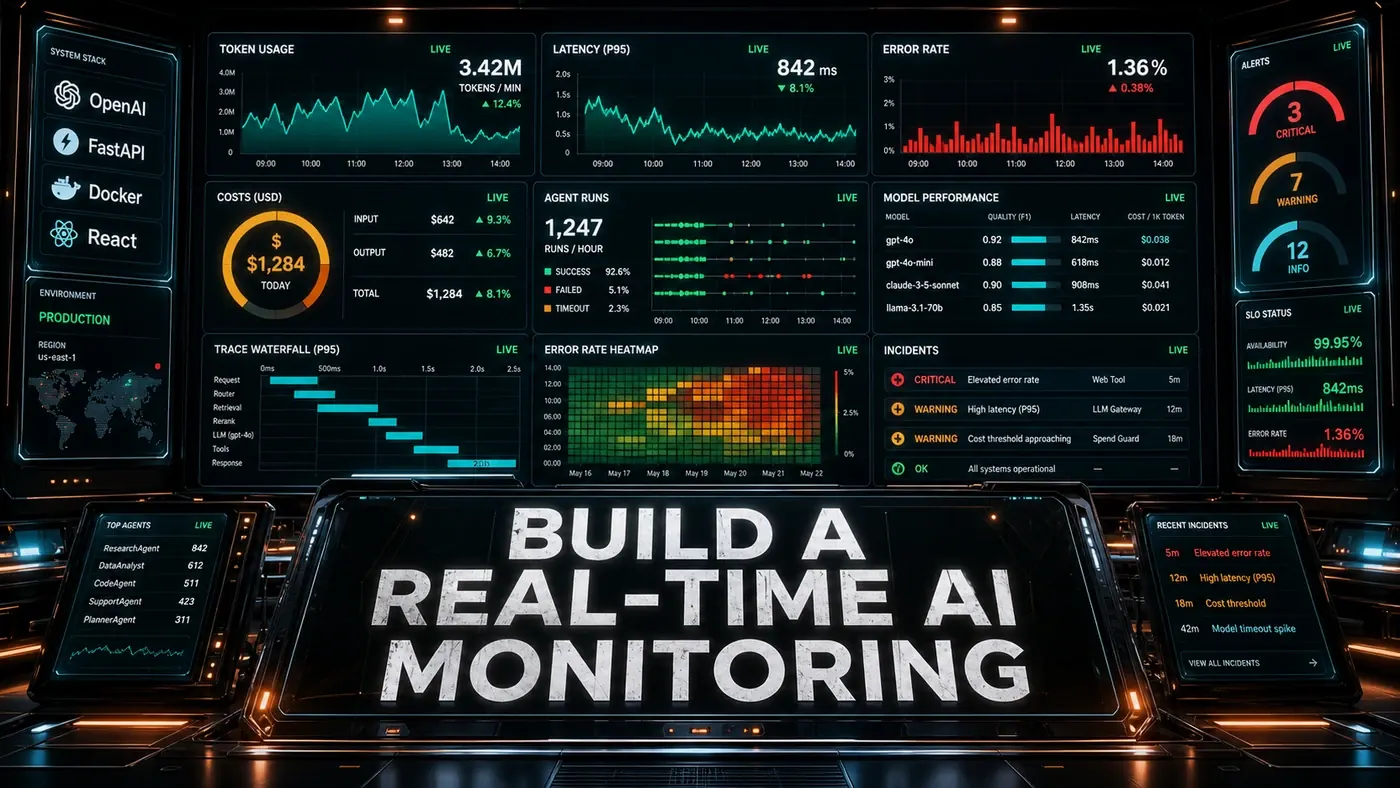
That gap is the problem a monitoring dashboard solves. Instead of digging through provider invoices at the end of the month or grepping logs after something breaks, you get a live picture of what your agents are actually doing, how many requests they handle, how long each one takes, how much it costs, and which models are carrying the load.
The build below puts that picture on a screen. A Python backend collects the numbers, a WebSocket pushes them to the browser as they happen, and a React dashboard charts them. None of it is exotic. It's the same stack a lot of Australian engineering teams already run, wired together for one job: telling you the truth about your AI system while it's running, not after.
Here's how the pieces fit.
Analysis
Prerequisites
- Python 3.10+, Node.js 20+
- InfluxDB or TimescaleDB
- Docker for one-command deployment
- Basic React knowledge for frontend
Step-by-Step Framework
Step 1: Metrics Collection
Everything starts with capturing each request as it happens. The collector below batches raw events in memory and flushes them to a time-series database, either InfluxDB or TimescaleDB (opens in a new tab), both of which are built for exactly this kind of metrics storage. Batching matters: writing every single request to the database one at a time will hammer it under load, so the buffer holds points until there are 100 of them or the flush timer fires.
# monitoring/collector.py
from datetime import datetime
from typing import Dict
import asyncio

class MetricsCollector:
 def __init__(self, influx_client):
 self.influx = influx_client
 self.buffer = []
 self.flush_interval = 10 # seconds

 async def record_request(self, data: Dict):
 """Record a single request metric."""
 point = {
 "measurement": "llm_requests",
 "tags": {
 "model": data["model"],
 "provider": data["provider"],
 "status": data["status"], # success, error, timeout
 "endpoint": data.get("endpoint", "default")
 },
 "fields": {
 "input_tokens": data["input_tokens"],
 "output_tokens": data["output_tokens"],
 "total_tokens": data["input_tokens"] + data["output_tokens"],
 "latency_ms": data["latency_ms"],
 "cost_usd": data.get("cost_usd", 0),
 "error": 1 if data["status"] == "error" else 0
 },
 "time": datetime.utcnow()
 }

 self.buffer.append(point)

 if len(self.buffer) >= 100:
 await self._flush()

 async def _flush(self):
 if not self.buffer:
 return
 await self.influx.write_points(self.buffer)
 self.buffer = []

 async def start(self):
 while True:
 await asyncio.sleep(self.flush_interval)
 await self._flush()
Step 2: FastAPI Backend with WebSockets
Next, the backend serves the data to the browser. FastAPI handles WebSocket connections natively through the @app.websocket decorator, with websocket.accept() to open the connection and receive_text/send_text to pass messages back and forth, see the Better Stack guide to FastAPI WebSockets (opens in a new tab) for the full pattern. The broadcast_metrics loop wakes every five seconds, queries the latest aggregates, and pushes them to every connected client, dropping any that have gone dead.
One thing worth flagging before you ship this: the CORS config below uses allow_origins=["*"] together with allow_credentials=True, and the connection handlers swallow errors with bare except blocks. That's fine for a local build, but lock down the allowed origins and tighten the error handling before this faces the public internet.
# monitoring/api.py
from fastapi import FastAPI, WebSocket
from fastapi.middleware.cors import CORSMiddleware
import asyncio
import json
from datetime import datetime, timedelta

app = FastAPI()
app.add_middleware(
 CORSMiddleware,
 allow_origins=["*"],
 allow_credentials=True,
 allow_methods=["*"],
 allow_headers=["*"]
)

connected_clients = set()

@app.websocket("/ws")
async def websocket_endpoint(websocket: WebSocket):
 await websocket.accept()
 connected_clients.add(websocket)
 try:
 while True:
 data = await websocket.receive_text()
 # Client can send filter preferences
 except:
 connected_clients.discard(websocket)

async def broadcast_metrics():
 """Broadcast latest metrics to all connected clients."""
 while True:
 await asyncio.sleep(5)

 metrics = await get_latest_metrics()
 message = json.dumps({
 "type": "metrics_update",
 "timestamp": datetime.utcnow().isoformat(),
 "data": metrics
 })

 dead_clients = set()
 for client in connected_clients:
 try:
 await client.send_text(message)
 except:
 dead_clients.add(client)

 connected_clients -= dead_clients

async def get_latest_metrics():
 """Query aggregated metrics."""
 return {
 "requests_per_minute": await get_rpm(),
 "avg_latency_ms": await get_avg_latency(),
 "error_rate": await get_error_rate(),
 "tokens_per_minute": await get_tpm(),
 "cost_per_hour": await get_hourly_cost(),
 "active_models": await get_model_distribution(),
 "top_endpoints": await get_top_endpoints()
 }

@app.get("/api/metrics/current")
async def get_current_metrics():
 return await get_latest_metrics()

@app.get("/api/metrics/history")
async def get_history(metric: str, period: str = "1h"):
 """Get historical data for charting."""
 return await query_history(metric, period)
Step 3: React Dashboard Frontend
The front end opens a WebSocket to the backend, listens for metrics_update messages, and keeps the last 50 readings in state so the charts have something to plot over time. Charting runs on Recharts (opens in a new tab), a composable React library built on D3, the LineChart, Line, XAxis, YAxis, Tooltip and ResponsiveContainer components imported here are its standard building blocks, and ResponsiveContainer is what makes the chart resize cleanly with the layout.
// dashboard/src/App.tsx
import { useEffect, useState } from 'react';
import { LineChart, Line, XAxis, YAxis, Tooltip, ResponsiveContainer } from 'recharts';

interface Metrics {
 requests_per_minute: number;
 avg_latency_ms: number;
 error_rate: number;
 tokens_per_minute: number;
 cost_per_hour: number;
}

function App() {
 const [metrics, setMetrics] = useState<Metrics | null>(null);
 const [history, setHistory] = useState<any[]>([]);
 const [ws, setWs] = useState<WebSocket | null>(null);

 useEffect(() => {
 const socket = new WebSocket('ws://localhost:8000/ws');
 socket.onmessage = (event) => {
 const data = JSON.parse(event.data);
 if (data.type === 'metrics_update') {
 setMetrics(data.data);
 setHistory(prev => [...prev.slice(-50), {
 time: new Date().toLocaleTimeString(),
 rpm: data.data.requests_per_minute,
 latency: data.data.avg_latency_ms,
 errors: data.data.error_rate * 100
 }]);
 }
 };
 setWs(socket);
 return () => socket.close();
 }, []);

 return (
 <div className="dashboard">
 <h1>AI Agent Monitoring</h1>

 <div className="metrics-grid">
 <MetricCard title="Requests/min" value={metrics?.requests_per_minute ?? 0} />
 <MetricCard title="Avg Latency" value={
How to build a real-time AI monitoring dashboard: answer-first summary
How to build a real-time AI monitoring dashboard matters because it can change how Australian business teams plan, build, or govern an AI implementation workflow. Build a live monitoring dashboard for AI agents that tracks token usage, latency, error rates, cost, and model performance as requests happen.
The direct answer is this: do not treat the topic as a standalone trend. Treat it as a decision about inputs, outputs, review ownership, data exposure, and whether the workflow produces a result that is faster, safer, or more useful than the current process.
How to build a real-time AI monitoring dashboard: implementation checklist
- Define the user, job to be done, and success metric for the AI implementation workflow.
- Collect real examples, policies, source files, customer questions, or search queries before writing prompts or choosing tools.
- Separate low-risk drafts from decisions that need approval, privacy checks, or senior review.
- Document what the AI is allowed to access, what it must not access, and who signs off before production use.
- Review time saved, quality score, review effort, business outcome after a small pilot rather than judging the idea from a demo.
This keeps the work practical. It also gives search engines and AI answer engines a clean factual structure: what the topic is, who it helps, what to do next, and which risks matter before implementation.
Decision criteria for How to build a real-time AI monitoring dashboard
| Decision area | What to check | Production signal |
|---|---|---|
| Intent | Does How to build a real-time AI monitoring dashboard solve a real workflow problem? | The use case has a named owner and measurable outcome. |
| Data | Can the required data be used safely? | Sensitive data is classified and access is controlled. |
| Quality | Can a reviewer judge the output consistently? | Examples, rubrics, or acceptance criteria exist. |
| Scale | Can the workflow be repeated without hero effort? | The process is documented and can be handed to another team member. |
Practical example for How to build a real-time AI monitoring dashboard
A small business could use this article to choose one practical test. For example, a manager might take one customer-facing process, one internal document workflow, or one recurring content task and redesign only that step with AI support. The goal is not to automate the whole business at once; it is to learn where How-to Guide creates reliable leverage.
The useful deliverable is a short operating note: the trigger, the source material, the prompt or tool, the review checklist, the escalation rule, and the metric. That note becomes the handover asset for staff training, SEO/GEO content, service delivery, or future agent work.
Risks and controls for How to build a real-time AI monitoring dashboard
The common failure pattern is moving too quickly from a promising idea into an unmanaged workflow. For How to build a real-time AI monitoring dashboard, the risk is not only bad output. It can also be unclear data permission, staff confusion, duplicate content, unreviewed customer advice, or a tool that quietly changes cost or capability.
- Control unclear use case with a named owner, a review step, and written acceptance criteria.
- Control weak data quality with a named owner, a review step, and written acceptance criteria.
- Control missing governance with a named owner, a review step, and written acceptance criteria.
- Control no measurement with a named owner, a review step, and written acceptance criteria.
Measurement plan for How to build a real-time AI monitoring dashboard
A useful AI or SEO initiative should leave evidence. Track time saved, quality score, review effort, business outcome and compare the pilot against the current process. If the measure does not improve, keep the learning but avoid scaling the workflow.
For GEO readiness, the page should also answer the core question directly, define the entities involved, include implementation steps, explain tradeoffs, and link readers to the next relevant AI Kick Start service, guide, tool, or article.
Definitions and entities for How to build a real-time AI monitoring dashboard
For search, GEO, and staff handover, define the core entities in plain language. In this article the important entities are the workflow owner, the AI tool or model, the source material, the review process, the risk boundary, and the measurable business outcome. Clear definitions make the page easier for people to scan and easier for AI answer engines to quote accurately.
- Workflow owner: the person accountable for deciding whether How to build a real-time AI monitoring dashboard belongs in the business process.
- Source material: the documents, examples, policies, URLs, prompts, videos, or customer questions that ground the output.
- Review boundary: the point where a human checks accuracy, privacy, brand voice, or customer impact before the result is used.
- Success metric: the measure that proves whether the AI implementation workflow is worth repeating.
How to build a real-time AI monitoring dashboard versus doing nothing
Doing nothing is also a decision. The cost may be slow manual work, weaker search visibility, inconsistent advice, duplicated effort, or staff using unmanaged AI tools without a shared process. The practical question is whether a controlled pilot can reduce that cost without creating a larger governance problem.
| Option | When it makes sense | What to watch |
|---|---|---|
| Do nothing | The workflow is rare, low value, or already reliable. | Competitors may improve speed, content depth, or service consistency first. |
| Run a small pilot | The task repeats often and has clear review criteria. | Keep scope tight and measure the result against the current process. |
| Build a production workflow | The pilot is repeatable and risk controls are documented. | Assign ownership, monitoring, training, and a rollback path. |
AI Kick Start handover package for How to build a real-time AI monitoring dashboard
A production handover should be concrete enough that another person can run it. For How to build a real-time AI monitoring dashboard, that means a short brief, a workflow map, approved prompts or tool settings, source material, a review checklist, internal links to supporting resources, and a simple measurement sheet. This is the difference between reading about AI and turning it into operational capability.
That packaging also strengthens E-E-A-T. It shows experience through implementation notes, expertise through decision criteria, authoritativeness through source-aware structure, and trust through risks, controls, and review steps. The article becomes useful even if the reader never buys a tool because it helps them make a better operational decision.