


Analysis
For years, automating a website meant one thing: writing scripts that hunted for buttons by their underlying code. You told the script exactly where the "Add to cart" button lived, and the moment a developer redesigned the page, your script broke. Anyone who has maintained that kind of automation knows the drill, it snaps the week you stop watching it.
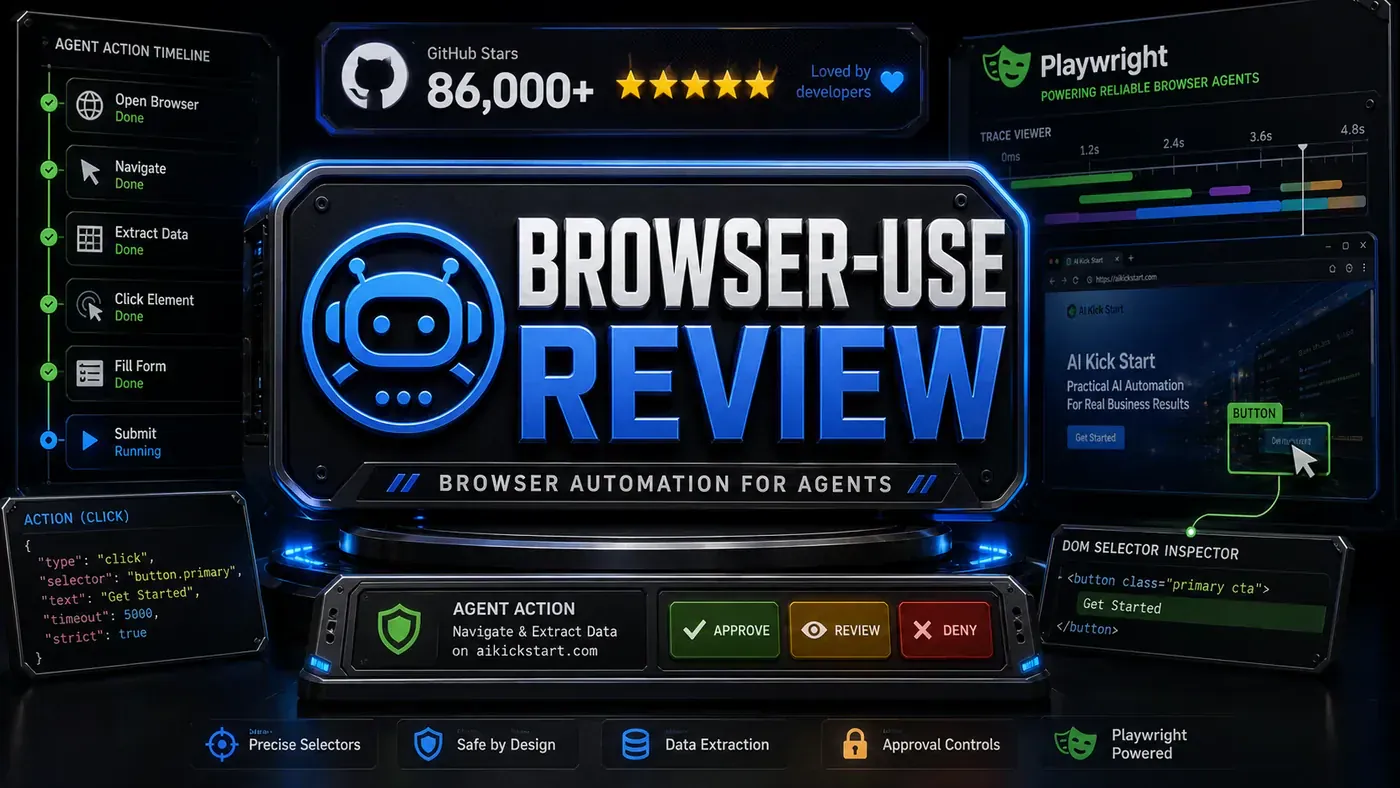
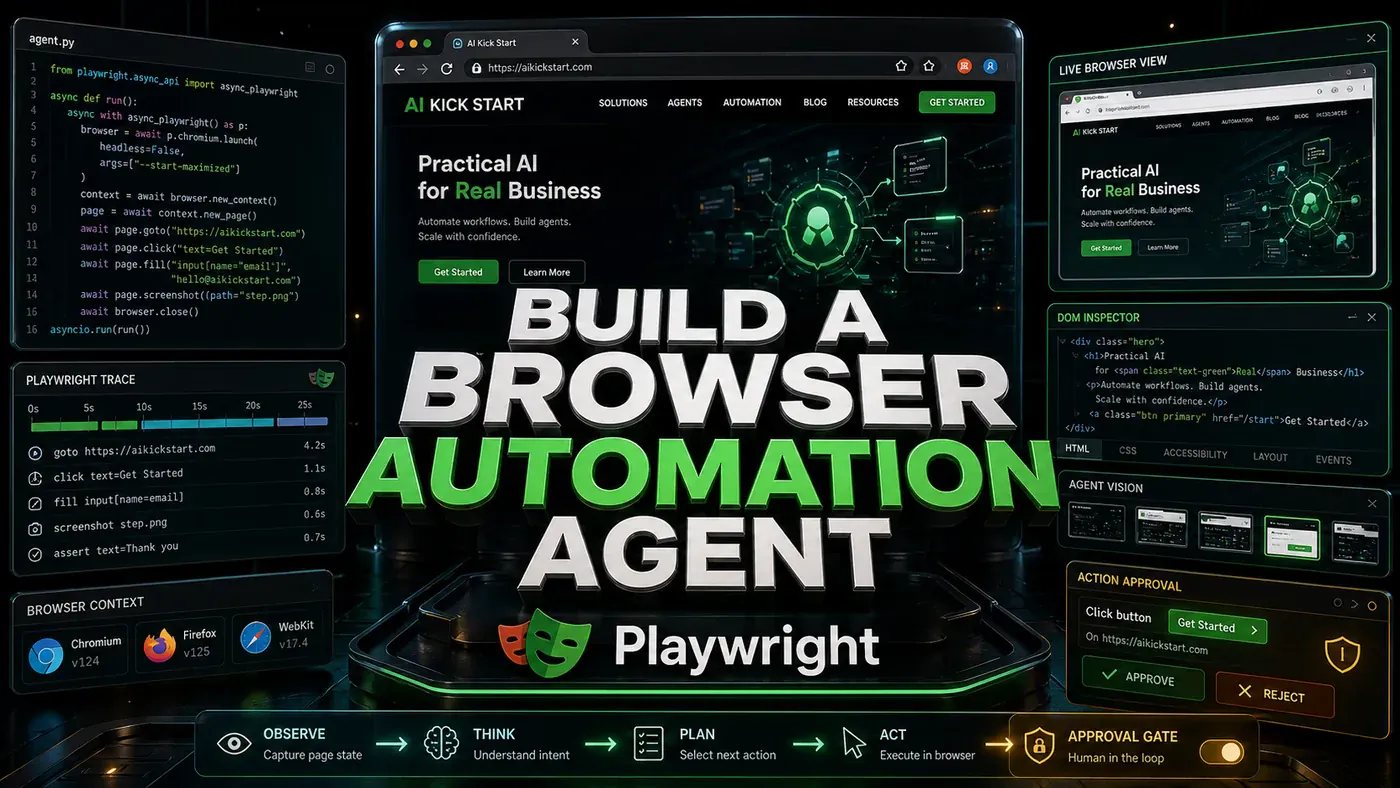
A different approach has taken hold. Instead of reading a site's source code, the agent looks at the page the way a person does. It takes a screenshot, works out what it's seeing, and decides where to click or what to type. Then it takes another screenshot and goes again. The models that make this possible got good fast: OpenAI's GPT-5.5 (opens in a new tab), released in April 2026, and Anthropic's Claude Sonnet 4.6 (opens in a new tab), out in February, were both built to operate software and move across tools rather than just chat.
For a business team, the payoff is plain. Tasks that used to need a custom-built scraper, pulling prices off supplier sites, filling in a portal nobody has an API for, checking that a booking flow still works, can be handled by one agent that adapts to whatever the page actually looks like. No selectors to babysit, no rebuild every time a vendor changes their layout.
The catch is that an agent let loose on a browser can do real damage, so the build below pairs the automation loop with hard limits on where it can go and what it's allowed to touch. Here's how to put one together.
Analysis
Prerequisites
You'll need a working Python setup and a few packages. These are the standard installs (Playwright on PyPI (opens in a new tab)):
- Python 3.10+
pip install playwright openai pillowplaywright install chromium- API key for vision-capable LLM
- Docker (optional, for sandboxing)
Step-by-Step Framework
Step 1: Browser Setup
This is the layer that drives the browser. Playwright (opens in a new tab) handles the heavy lifting: it launches Chromium, runs it headless by default, gives you a page to work with, and runs JavaScript like any real browser would. The class below wraps it so the rest of the agent can take screenshots and fire off actions without touching Playwright directly.
# browser/setup.py
from playwright.async_api import async_playwright
import base64
from io import BytesIO

class BrowserAgent:
 def __init__(self):
 self.browser = None
 self.page = None
 self.action_history = []

 async def start(self, headless: bool = True):
 self.playwright = await async_playwright().start()
 self.browser = await self.playwright.chromium.launch(
 headless=headless,
 args=['--no-sandbox', '--disable-setuid-sandbox']
 )
 self.context = await self.browser.new_context(
 viewport={"width": 1280, "height": 720},
 user_agent="Mozilla/5.0 (Windows NT 10.0; Win64; x64) AppleWebKit/537.36"
 )
 self.page = await self.context.new_page()

 async def get_screenshot(self) -> str:
 """Capture screenshot and return as base64."""
 screenshot = await self.page.screenshot()
 return base64.b64encode(screenshot).decode('utf-8')

 async def execute_action(self, action: dict):
 """Execute a browser action."""
 action_type = action.get("type")

 if action_type == "click":
 await self.page.click(action["selector"])
 elif action_type == "type":
 await self.page.fill(action["selector"], action["text"])
 elif action_type == "navigate":
 await self.page.goto(action["url"])
 elif action_type == "scroll":
 await self.page.evaluate(f"window.scrollBy(0, {action['amount']})")
 elif action_type == "screenshot":
 pass # Will be taken automatically
 elif action_type == "wait":
 await self.page.wait_for_timeout(action["ms"])
 elif action_type == "extract":
 return await self.page.inner_text(action["selector"])
 elif action_type == "done":
 return action.get("answer")

 self.action_history.append(action)

 async def close(self):
 await self.browser.close()
 await self.playwright.stop()
Note the screenshot comes back as base64. That's the format the vision model wants, so this hands the page state straight to the next stage.
Step 2: Vision-Powered Decision Engine
This is the brain. It takes the screenshot plus the goal, sends both to a vision model, and gets back a single action in JSON. The model isn't reading HTML, it's looking at the picture and reasoning about what to do next.
# browser/vision.py
from openai import OpenAI
import json

class VisionDecisionEngine:
 def __init__(self):
 self.client = OpenAI()

 async def decide_next_action(self, screenshot_b64: str, goal: str, history: list) -> dict:
 messages = [
 {
 "role": "user",
 "content": [
 {
 "type": "text",
 "text": f"""You are a browser automation agent. Your goal: {goal}

Previous actions: {json.dumps(history[-5:])}

Look at the screenshot and decide the next action.
Respond with JSON only:
{{
 "type": "click|type|navigate|scroll|extract|wait|done",
 "selector": "CSS selector (for click/type/extract)",
 "text": "text to type (for type)",
 "url": "URL (for navigate)",
 "amount": pixels (for scroll),
 "ms": milliseconds (for wait),
 "reason": "why you're taking this action"
}}

If the task is complete, use type "done" with "answer".
If stuck, use type "done" with "answer": "Unable to complete: [reason]""""
 },
 {
 "type": "image_url",
 "image_url": {
 "url": f"data:image/png;base64,{screenshot_b64}"
 }
 }
 ]
 }
 ]

 response = self.client.chat.completions.create(
 model="gpt-5.5",
 messages=messages,
 max_tokens=500,
 response_format={"type": "json_object"}
 )

 return json.loads(response.choices[0].message.content)
The chat.completions.create call with an image_url and response_format set to json_object is the documented way to send a picture and get clean JSON back. One thing to watch: for the GPT-5 reasoning family, OpenAI now steers you toward the Responses API and max_completion_tokens rather than the older max_tokens shown here. If this snippet errors on the parameter, that's the first thing to swap.
Step 3: Main Agent Loop
Everything above is glued together here. The loop is dead simple: screenshot, decide, act, repeat. Each pass feeds a fresh screenshot to the model, so the agent always reasons about the page as it stands right now, not how it looked three steps ago.
# browser/agent.py
import asyncio

class WebAgent:
 def __init__(self):
 self.browser = BrowserAgent()
 self.vision = VisionDecisionEngine()

 async def run(self, goal: str, start_url: str = None, max_steps: int = 20):
 await self.browser.start(headless=True)

 if start_url:
 await self.browser.page.goto(start_url)

 for step in range(max_steps):
 # 1. Screenshot
 screenshot = await self.browser.get_screenshot()

 # 2. Decide action
 action = await self.vision.decide_next_action(
 screenshot, goal, self.browser.action_history
 )

 print(f"Step {step + 1}: {action['type']} - {action.get('reason', '')}")

 # 3. Execute
 result = await self.browser.execute_action(action)

 if action["type"] == "done":
 await self.browser.close()
 return result

 await asyncio.sleep(0.5) # Wait for page to settle

 await self.browser.close()
 return "Max steps reached without completion"

# Usage
async def main():
 agent = WebAgent()
 result = await agent.run(
 goal="Find the price of a 1-year subscription on the pricing page",
 start_url="https://example.com"
 )
 print(f"Result: {result}")

asyncio.run(main())
The max_steps cap matters. It stops a confused agent from looping forever and racking up API costs while it gets nowhere. The half-second sleep gives the page time to settle before the next screenshot.
Step 4: Safety Restrictions
Skip this step and you've built an agent that can wander anywhere and click anything. Don't. This checker locks the agent to a list of allowed domains, blocks the actions you never want automated, and refuses to type anything that looks like a password or card number.
# browser/safety.py
ALLOWED_DOMAINS = ["example.com", "app.example.com"]
FORBIDDEN_ACTIONS = ["submit_password", "confirm_deletion", "make_payment"]

class SafetyChecker:
 def validate_action(self, action: dict, current_url: str) -> bool:
 # Check domain
 from urllib.parse import urlparse
 domain = urlparse(current_url).netloc

 if not any(allowed in domain for allowed in ALLOWED_DOMAINS):
 print(f"Blocked: navigation to {domain} not allowed")
 return False

 # Check forbidden actions
 if action.get("type") in FORBIDDEN_ACTIONS:
 print(f"Blocked: action {action['type']} requires human approval")
 return False

 # Require approval for sensitive actions
 if action.get("type") == "type" and any(
 keyword in action.get("text", "").lower()
 for keyword in ["password", "credit card", "ssn"]
 ):
 print("Blocked: cannot type sensitive information")
 return False

 return True
Wire this in before every action the agent proposes. The domain list and forbidden actions here are placeholders, set them to match what your own task actually needs to touch.
Step 5: Data Extraction Mode
Often you don't want the agent clicking around at all. You just want it to read a page and hand back clean, structured data. This subclass does exactly that: open the URL, take one screenshot, and ask the model to fill in a schema you define.
# browser/extraction.py
class DataExtractionAgent(WebAgent):
 async def extract_structured(self, url: str, schema: dict) -> dict:
 """Extract structured data from a page based on a schema."""
 await self.browser.start(headless=True)
 await self.browser.page.goto(url)

 screenshot = await self.browser.get_screenshot()

 response = self.vision.client.chat.completions.create(
 model="gpt-5.5",
 messages=[{
 "role": "user",
 "content": [
 {"type": "text", "text": f"Extract data according to this schema: {json.dumps(schema)}"},
 {"type": "image_url", "image_url": {"url": f"data:image/png;base64,{screenshot}"}}
 ]
 }],
 response_format={"type": "json_object"}
 )

 await self.browser.close()
 return json.loads(response.choices[0].message.content)

# Usage
agent = DataExtractionAgent()
data = await agent.extract_structured(
 url="https://example.com/products",
 schema={
 "products": [
 {"name": "string", "price": "number", "rating": "number"}
 ],
 "total_count": "number"
 }
)
Because the model reads the rendered page, this handles sites built with heavy JavaScript that defeat a plain HTML scraper. You describe the shape you want; it returns data that fits.
Do/Don't
| Do | Don't |
|---|---|
| Use headless mode in production | Run headed browsers in CI/production |
| Implement domain restrictions | Let the agent navigate anywhere |
| Add rate limiting between actions | Hammer websites with rapid requests |
| Use structured extraction for data | Parse HTML with regex |
| Handle CAPTCHAs by pausing for human | Try to solve CAPTCHAs automatically |
Conclusion
The shift here is worth sitting with: instead of feeding the agent brittle CSS selectors, you let it see the page and work out the next move on its own. Playwright drives the browser, the vision model supplies the judgement, and the loop keeps them talking. Put the safety checks in early, throttle the request rate, and pull a human into the loop before anything sensitive happens. Get those guardrails right and you've got automation that survives the next redesign instead of breaking on it.