
Lesson 07 of 38 · Basics - 8 min
AI Basics: What Permissions Mean
Understand common permission words before clicking setup buttons in AI tools.
AI Basics: Start Here
A permission is a choice that lets an app see or do something. Permission screens often use words like Allow, Connect, Authorise, Install, Enable, Run, Approve, and Continue. These words are not all the same, but they all mean you should slow down and read the screen before clicking.
Permission words in plain English
Translate permission buttons before clicking them.

What to understand
- Allow usually means the app may do something it could not do before.
- Connect usually means link this tool to another account or app.
- Authorise means give official permission.
- Install means add software so it can run.
- Enable means turn a feature on.
- Run means start a command, script, or action.
- Approve means you have checked and agreed to the action.
- Continue means move to the next step. It may still matter, so read the screen.
Permission word translator
Read the word, then ask what it lets the tool see or do.
Step by step
Copy the pause question
Write this question: What will this button let the tool see or do?
HintThis one question is useful on almost every permission screen. You are done when the question is written somewhere you will see it.
Translate five button words
Write Allow, Connect, Install, Run, and Approve. Next to each, write the plain meaning from this lesson.
HintDo not worry about perfect definitions. Use words you understand. You are done when all five words have a plain meaning next to them.
Practise stopping
Say this out loud: If I do not understand the permission, I stop and ask before clicking.
HintStopping is not failure. It is good safety. You are done when saying it out loud feels normal, not embarrassing.
Read a real permission menu
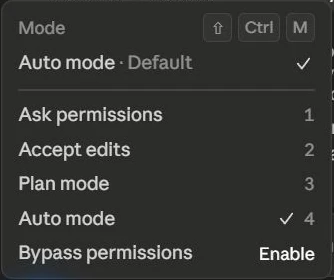
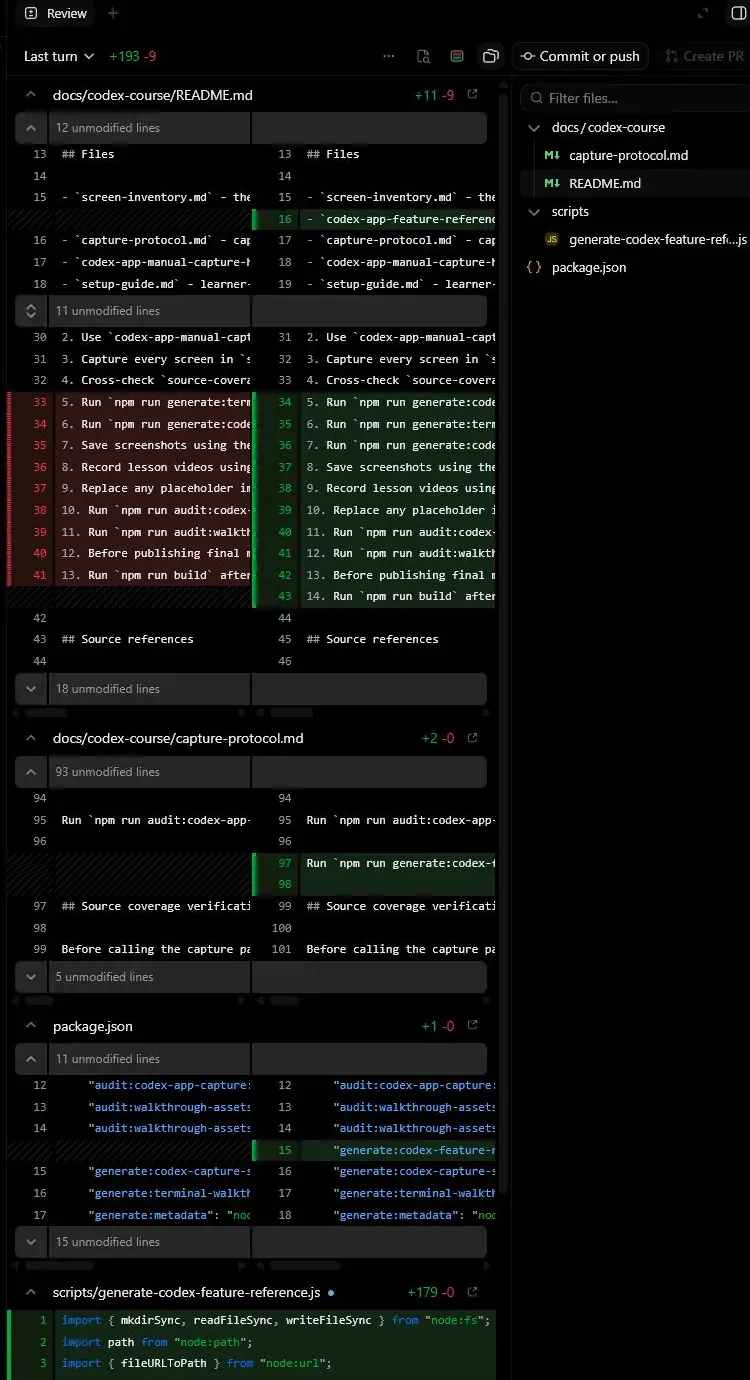
Scroll to the Reference screens at the bottom of this lesson. The first screenshot shows a real permission menu with five choices. Next to each choice, write your plain meaning - which one asks you every time, and which one lets the tool act without asking? The second screenshot shows the warning behind the most permissive mode.
HintYou are done when you can say which menu choice you would pick as a beginner and why. (Hint: the one that asks the most questions.)
Reference screens
Course screenshots and visual references for the lesson flow. Re-check the live product before paid delivery or public launch.

Make a small checklist for permission screens: read the button, name what it allows, check the account, ask if unsure.
A permission pause checklist.
Common mistakes to avoid
- Clicking the largest or brightest button without reading it.
- Connecting a real account during practice.
- Approving a task before checking what will change.
- Thinking Continue is always harmless.
Key terms
- Permission
- A choice that lets an app see or do something.
- Allow
- Let the app do something it could not do before.
- Connect
- Link one app or account to another tool.
- Approve
- Agree to an action after checking it.
Resources
Checkpoint